Roles
Who can use this: view role to open the list. create role, edit role, and delete role for those buttons. Where to find it: User Management > Roles
What is this?
A role is a job name, such as cashier or manager. Users pick a role on the user form. What the role can do is set under Permissions.
Before you start
Decide the job names you need. Move users to another role before you delete one.
Steps
-
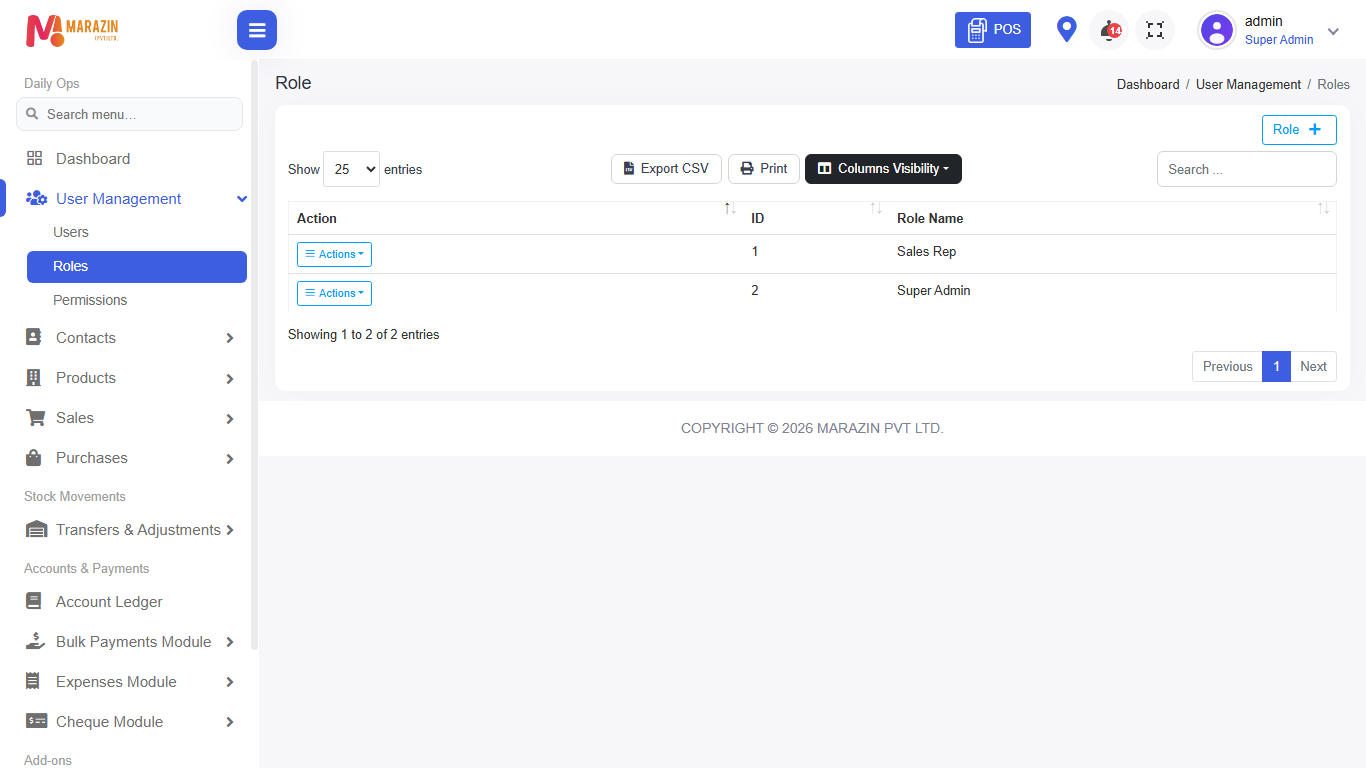
Open User Management > Roles.
-
Click Role.
-
The window title is New Role.

-
Type Role Name.
-
Leave Admin level on Staff (default — most roles) unless you know you need another level.
-
Click Save.
-
Click Close to leave without saving.
Field guide
| Field | Required? | What to enter |
|---|---|---|
| Role Name | Yes | A job name, such as Sales Executive. |
| Admin level | No | One option from the list below. |
Admin level choices
| Choice | When to use it |
|---|---|
| Staff (default — most roles) | Most staff. |
| Admin | Shop managers. |
| Super Admin | The owner. This home can see all sales totals. |
| Manager | A manager template. |
| Cashier (old template) | An older cashier template. |
| Sales Rep (old template) | An older sales rep template. |
Edit or delete
- Open Action on the row.
- Click Edit. The title becomes Edit Role.
- Change the name or admin level, then click Save.
- Click Delete.
- Read Are you sure want to delete?
- Click Delete to confirm, or Cancel to stop.
What you will see
The table columns are Action, ID, and Role Name. The new role appears in Select Role on Users. The role cannot work until you assign permissions.
Tips
- Create the role before you create the user.
- Use Staff (default — most roles) for cashiers.
Common problems
| Problem | Solution |
|---|---|
| Role is missing | You need create role. |
| The user still cannot open a menu | Assign permissions for that role. |
| Delete does not remove the job | Users may still be on that role. Move them first. CHECK: the page does not show a user count. |