Your account and password
Who can use this: Logout is for every signed-in user. Password change needs change user password. Where to find it: Your name in the top bar, or User Management > Users.
What is this?
Your name and role show in the top bar. A manager changes passwords from the Users list.
CHECK: there is no My Profile page. The header link is turned off.
Before you start
You must be signed in. To change a password, open Users. Some users see only their own row. The page then says to contact an administrator.
See your name
-
Look at the top bar.
-
Your user name and role are under the photo.
-
Click your name.
-
Click Logout when you finish.

Change a password
-
Open User Management > Users.
-
On your row, open Action.
-
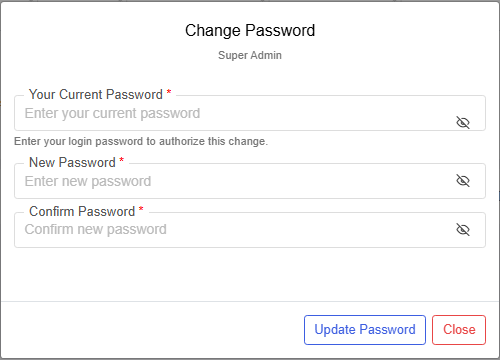
Click Password.
-
If you see Your Current Password, type your own login password.
-
Type the new password in New Password.
-
Type it again in Confirm Password.
-
Click Update Password.
-
Click Close to leave without saving.
Field guide
| Field | Required? | What to enter |
|---|---|---|
| Your Current Password | Yes, when the field is shown | Your password, to allow the change. |
| New Password | Yes | At least 5 characters. |
| Confirm Password | Yes | The same new password. |
What you will see
The window title is Change Password. The user name shows under the title. If you change your own password, you are signed out. Sign in again.
CHECK: a Super Admin may not see Your Current Password.
Tips
- Use the eye icon on each password field to check spelling.
- Profile photos are set on the user form, not from the top bar.
Common problems
| Problem | Solution |
|---|---|
| Password is missing in Action | You need change user password. |
| The new password is rejected | Use at least 5 characters. Match Confirm Password. |
| You wanted My Profile | CHECK: that menu is not available. Use Users. |