Permissions
Who can use this: view role-permission to open the list. create role-permission, edit role-permission, and delete role-permission for those buttons. Where to find it: User Management > Permissions
What is this?
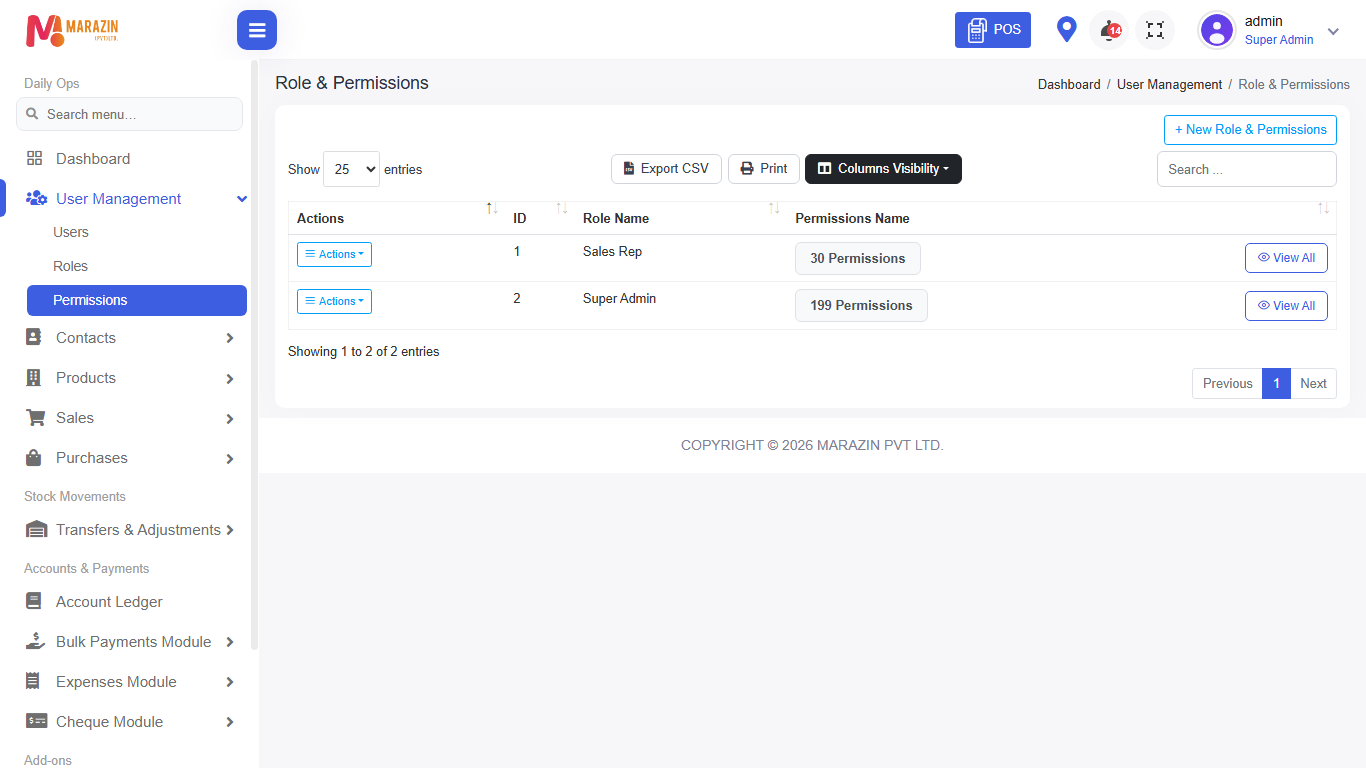
Permissions decide which menus and buttons a role can use. The page title is Role & Permissions.
Before you start
Create the role first. The role must appear in the list before you tick boxes.
See what a role can do
-
Open User Management > Permissions.
-
Find the role in Role Name.
-
Read the count, such as 1 Permission or 2 Permissions.
-
Click View All.
-
The window title is Permissions.
-
Type in Search by group or permission name... to filter.
-
Click Close.
Give a role its first permissions
-
Click + New Role & Permissions.
-
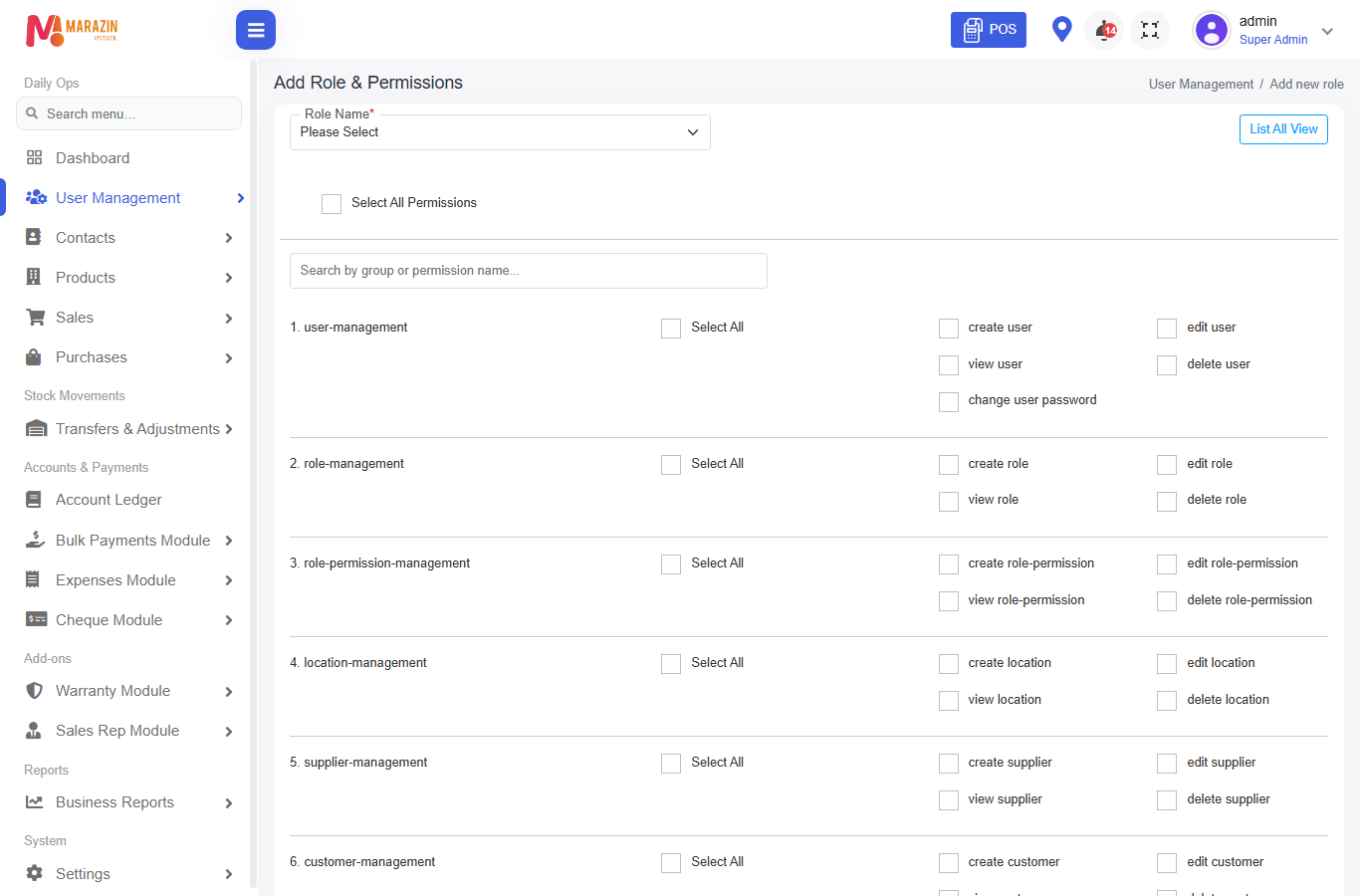
The page title is Add Role & Permissions.
-
Open Role Name.
-
Pick a role. The first line is Please Select.
-
Tick the boxes that job needs.
-
Tick Select All on one group to tick that group.
-
Tick Select All Permissions only when the job should do everything.
-
Click Assign.
Change a role
- On the list, open Action.
- Click Edit.
- The page title is Edit Role & Permissions.
- Role Name stays locked to that role.
- Change the ticks.
- Click Update.
- Click List All View to go back without using that button.
Remove a role from this list
- Open Action.
- Click Delete.
- Read Are you sure want to delete?
- Click Delete to confirm, or Cancel to stop.
Field guide
| Field | Required? | What to enter |
|---|---|---|
| Role Name | Yes | The role you already created. |
| Search by group or permission name... | No | Part of a group name or a permission name. |
| Select All Permissions | No | Ticks every box. |
| Select All | No | Ticks one group only. |
What you will see
The table columns are Actions, ID, Role Name, and Permissions Name. If the search matches nothing, you see No permissions found matching your search. Assign and Update show a success message. The list then shows the new count.
Tips
- Give cashiers only billing and their own sales.
- Use View All to check a role before a new staff member starts.
Common problems
| Problem | Solution |
|---|---|
| + New Role & Permissions is missing | You need create role-permission. |
| The role is not in Please Select | Create the role under Roles first. |
| A menu is still hidden | Edit the role and tick the matching permission. Sign out and back in. |
| Search shows no rows | Clear the search box and look again. |