All sales
Who can use this: view all sales or view own sales. Where to find it: Sales > All Sales
What is this?
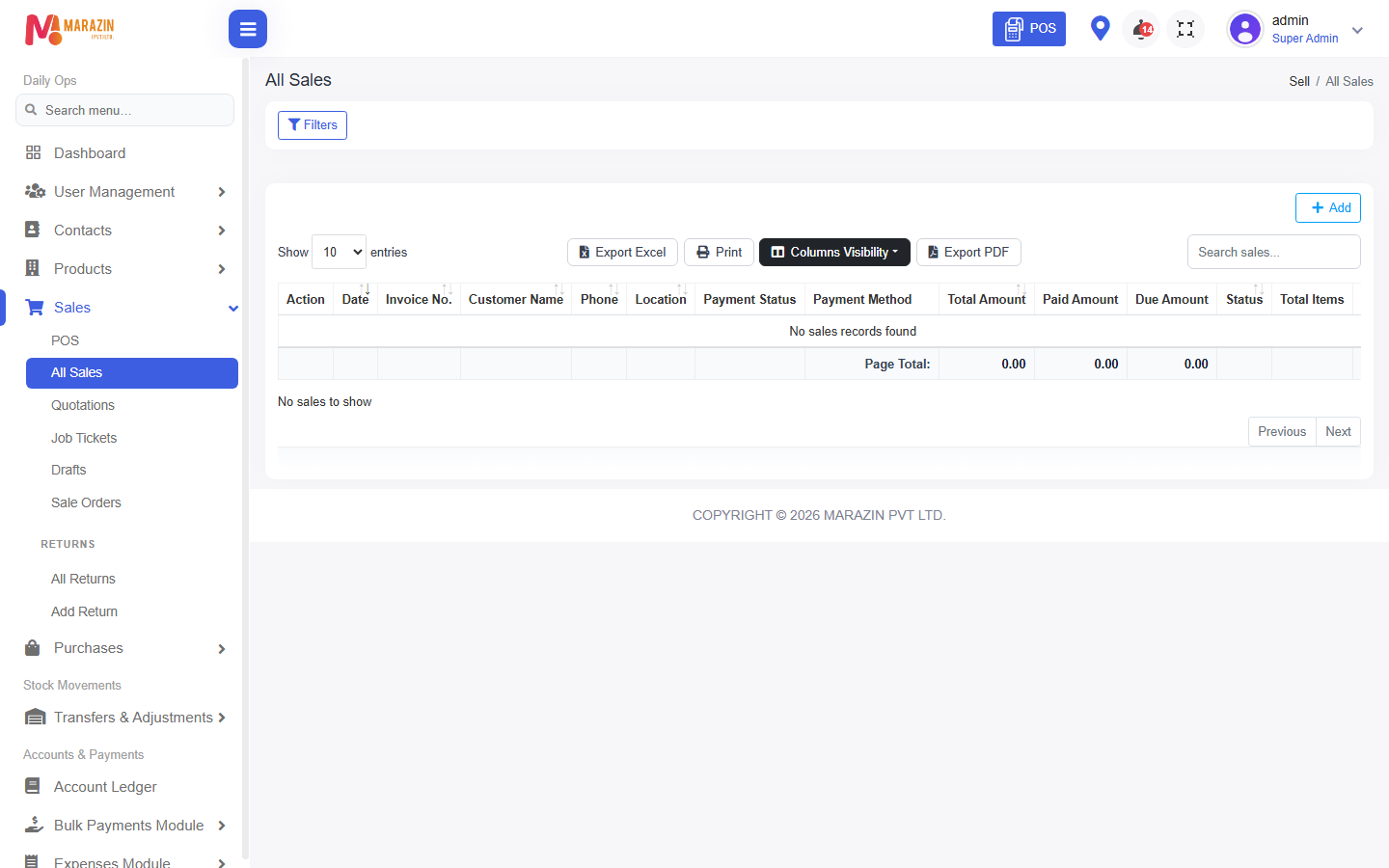
This is the list of finished bills. The page title is All Sales.
Before you start
Bills appear here after payment on POS. Use Filters when the list is long.
Steps
-
Open Sales > All Sales.
-
Click Filters to open the filter box.
-
Set Business Location, Customer, Payment Status, or Date Range.
-
Open Action on a row.
-
Click Print Invoice to print again.
-
Click Edit only if your role allows it.
-
Click Delete only if your role allows it.
Field guide
| Field | Required? | What to enter |
|---|---|---|
| Business Location | No | One shop, or leave All. |
| Customer | No | One customer, or leave All. |
| Payment Status | No | Paid, Due, Partial, or Overdue. |
| Date Range | No | The days you want to see. |
| User | No | The staff member who made the bill. |
What you will see
Columns include Invoice No., Customer Name, Total Amount, and Sell Due. Print is also in the row menu.
Tips
- Reprint from Print Invoice instead of billing again.
- Narrow the dates before you look for one bill.
Common problems
| Problem | Solution |
|---|---|
| Edit is missing | Posted bills need edit sale and edit posted sale. |
| The bill is not listed | Clear Filters, or check view own sales. |