Purchase FAQ (client questions)
Who: Staff who buy stock from suppliers.
How to use: Scan Quick answers → open the question → follow steps on screen.
Quick answers
| # | Question | Short answer |
|---|---|---|
| 1 | Where do I record a supplier bill? | Purchases → Add Purchase → Save |
| 2 | What is required? | Supplier, Purchase Date, Business Location, at least one line |
| 3 | When does stock go up? | When the purchase is saved as Received (default on Add) |
| 4 | Free Qty vs Claim Free Qty? | Free = arrived with bill. Claim Free = later receive on claims |
| 5 | Pay supplier later? | All Purchases → row Add payments |
| 6 | Return goods to supplier? | Purchases → Returns → Add Return |
| 7 | Use return credit on a due bill? | All Returns → Allocate Credit To Due Bill |
| 8 | Print purchase bill? | Row Print 80mm or Print A4 |
| 9 | Menu missing? | Role needs view purchase / create purchase |
| 10 | Supplier Claims menu missing? | Need claim permissions + feature access |
1. How do I add a purchase?
- Open Purchases → Add Purchase.
- Pick Supplier (plus icon opens New Supplier if needed).
- Set Purchase Date and Business Location.
- Search products: Enter Product Name / SKU / Scan bar code.
- Enter Purchase Quantity, cost, and other columns shown.
- Optional: Show payment fields if you pay now.
- Click Save.
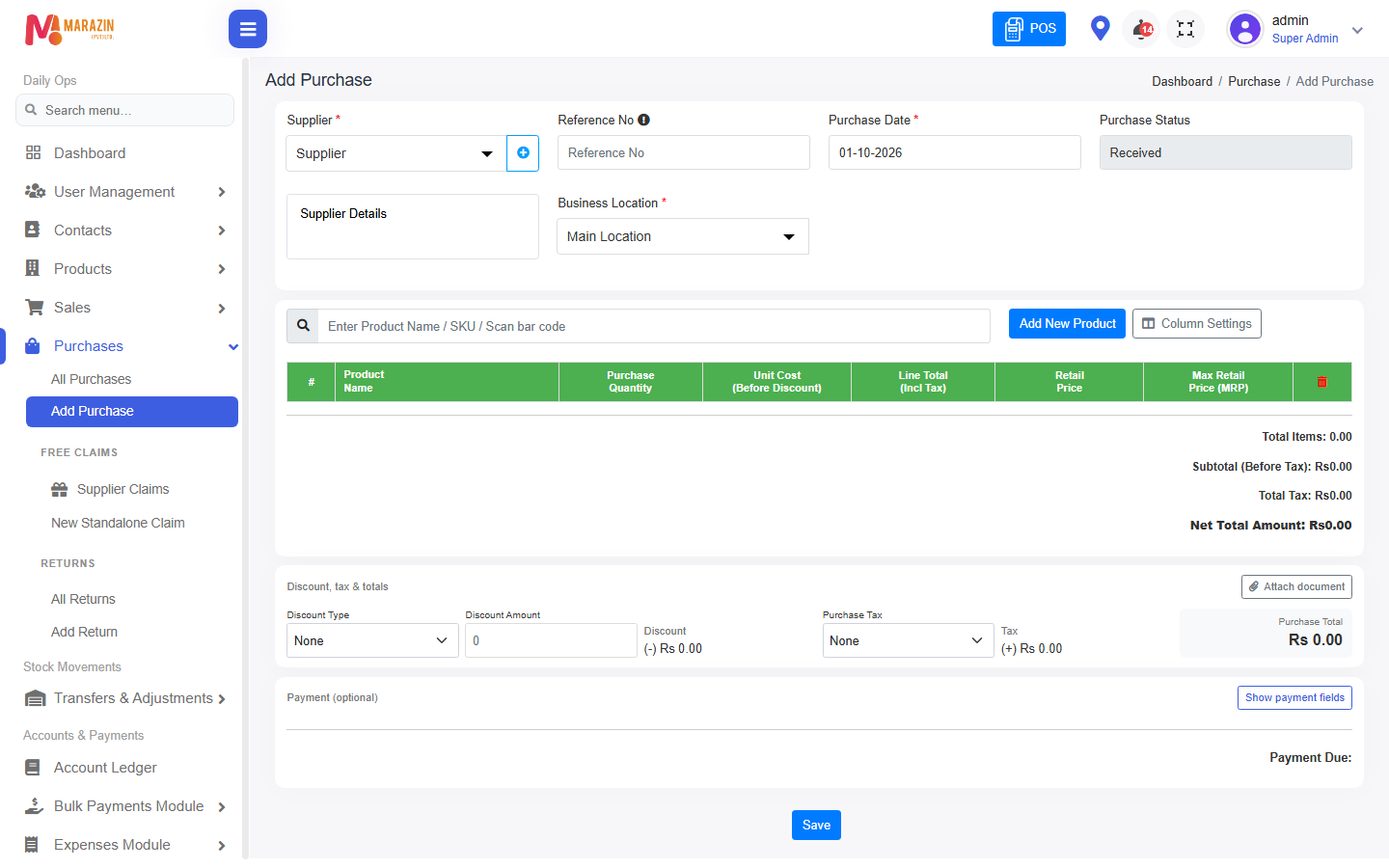
Look for: Supplier, product search, Save.
Full walkthrough: Add purchase.
2. What fields are required?
| Field | Required? | Notes |
|---|---|---|
| Supplier | Yes | Who you bought from |
| Purchase Date | Yes | Bill date |
| Business Location | Yes | Which shop receives stock |
| Purchase Status | Auto | New bills default to Received |
| Reference No | No | Blank = system creates one |
| Product lines | Yes | At least one line with qty |
| Payment fields | No | Use later via Add payments if unpaid |
3. When does stock increase?
- Saving a purchase with status Received adds stock at that Business Location (including batches when Manage Stock is on).
- List filters may still show Pending / Ordered for older bills — new Add form uses Received.
- Claim Free Qty does not add stock until you Receive the claim.
4. What is Free Qty vs Claim Free Qty?
| Column | Meaning |
|---|---|
| Free Qty | Free units received with this purchase (stock in with the bill when settings allow) |
| Claim Free Qty | Free units the supplier promised — tracked under Supplier Claims until received |
Flow for claims: purchase row Receive Free Claim / menu Supplier Claims → receive into Stock Location.
See Supplier claims.
5. How do I find or pay an old purchase?
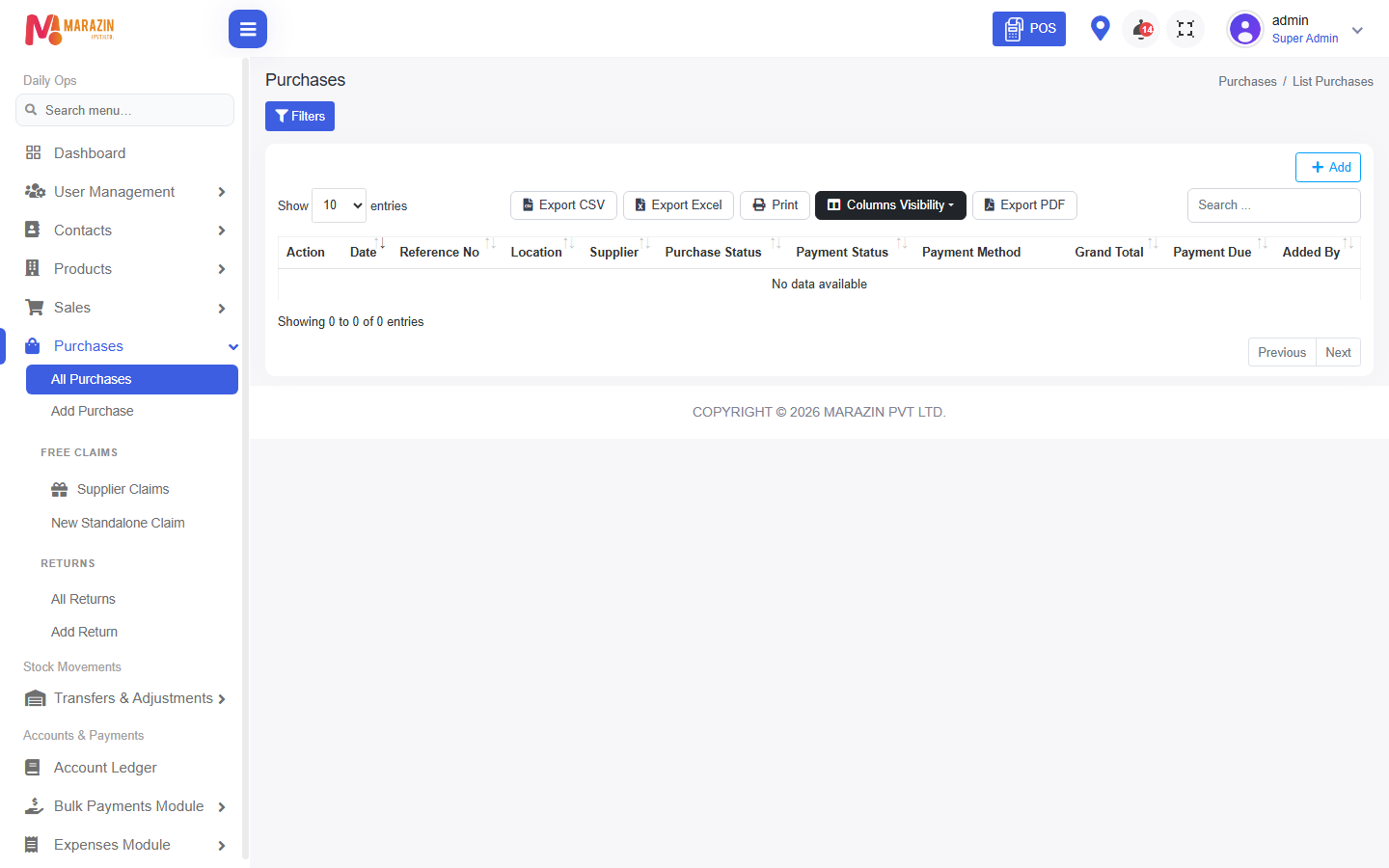
- Open Purchases → All Purchases.
- Use Filters: Business Location, Supplier, Purchase Status, Payment Status.
- Row actions: View, Edit, Add payments, View payments, Print 80mm, Print A4, Delete (if allowed).
Payment status: Paid, Due, Partial.
6. How do I return stock to a supplier?
- Open Purchases → Returns → Add Return.
- Pick Supplier and Business Location.
- Add return lines and Save.
- Screen may show Strict mode or Relaxed mode from settings — follow the rules shown.
Then use All Returns for print / credit allocation.
See Purchase return.
7. Return created supplier credit — what next?
- Open Purchases → Returns → All Returns.
- Use Allocate Credit To Due Bill (or the allocate action on that row).
- In the modal, apply credit to the due purchase, then confirm (Apply credit when shown).
8. Why is Purchases / Claims missing?
| Missing | Fix |
|---|---|
| Whole Purchases menu | Tick view purchase (and create/edit as needed) |
| Add Purchase | create purchase |
| Supplier Claims | view supplier claims (+ create/receive for those actions) |
| Free Qty columns | Shop setting for free qty must be on |