Product FAQ (client questions)
Who: Staff who add or edit products.
How to use: Scan Quick answers → open the question → follow steps → match the blue highlight on the screenshot.
:::tip Screenshots
Images are captured from the live BillShop UI with Playwright (npm run shots). Blue outline = the control to click or fill.
:::
Quick answers
| # | Question | Short answer |
|---|---|---|
| 1 | How do I add a product? | Products → Add Product → fill required fields → Save |
| 2 | Which fields are required? | Name, Unit, Brand, Main Category, Locations + prices (see table) |
| 3 | What is Manage Stock? | On = count stock + batches. Off = unlimited |
| 4 | What is opening stock? | Starting shelf qty (not a supplier purchase) |
| 5 | What is a batch? | One stock lot with its own qty, cost, prices, expiry |
| 6 | Form price vs POS price? | Managed stock → POS uses batch price |
| 7 | Why POS price did not change? | Use Edit Batch Prices, not only Edit |
| 8 | Different prices / expiry? | Keep one product → add more batches |
| 9 | How to upload image? | Form Browse… or Action → Add / Edit Image |
| 10 | How to deactivate? | Action → Deactivate (prefer over delete) |
| 11 | Assign to another shop? | Edit Business Locations, or list Add Location |
| 12 | How do filters work? | Open Filters on All Products |
| 13 | Bulk add? | Import Products + template + location |
| 14 | Can I delete? | Only if unused in sales/purchases; else deactivate |
1. How do I add a product?
- Open Products → Add Product.
- Fill the required fields (red
*). - Tick Manage Stock? for normal shop items.
- Enter the price table.
- Click Save, Save & Add Another, or Save & Opening Stock.
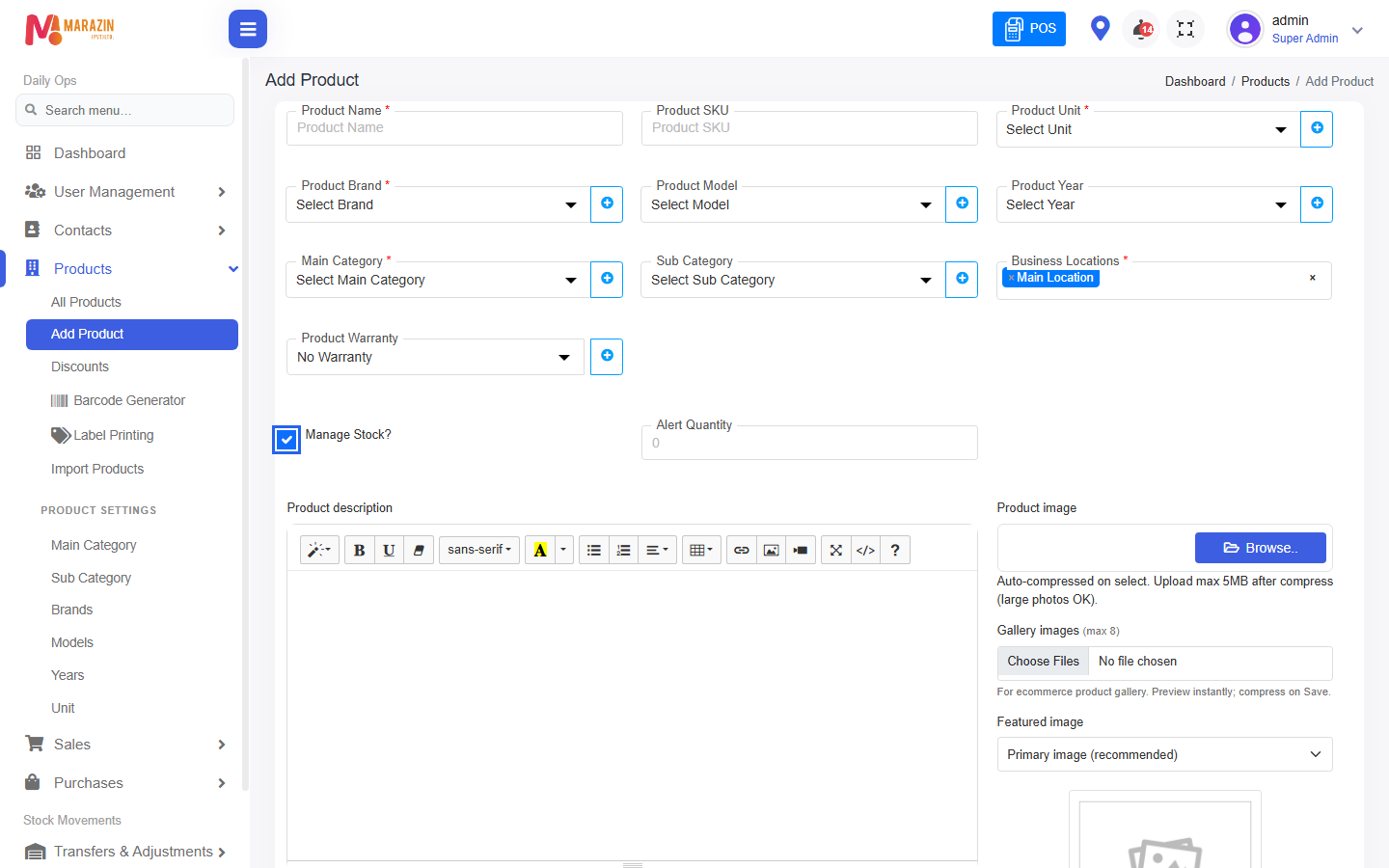
Look for: Business Locations, Manage Stock?, Browse… (blue outline).
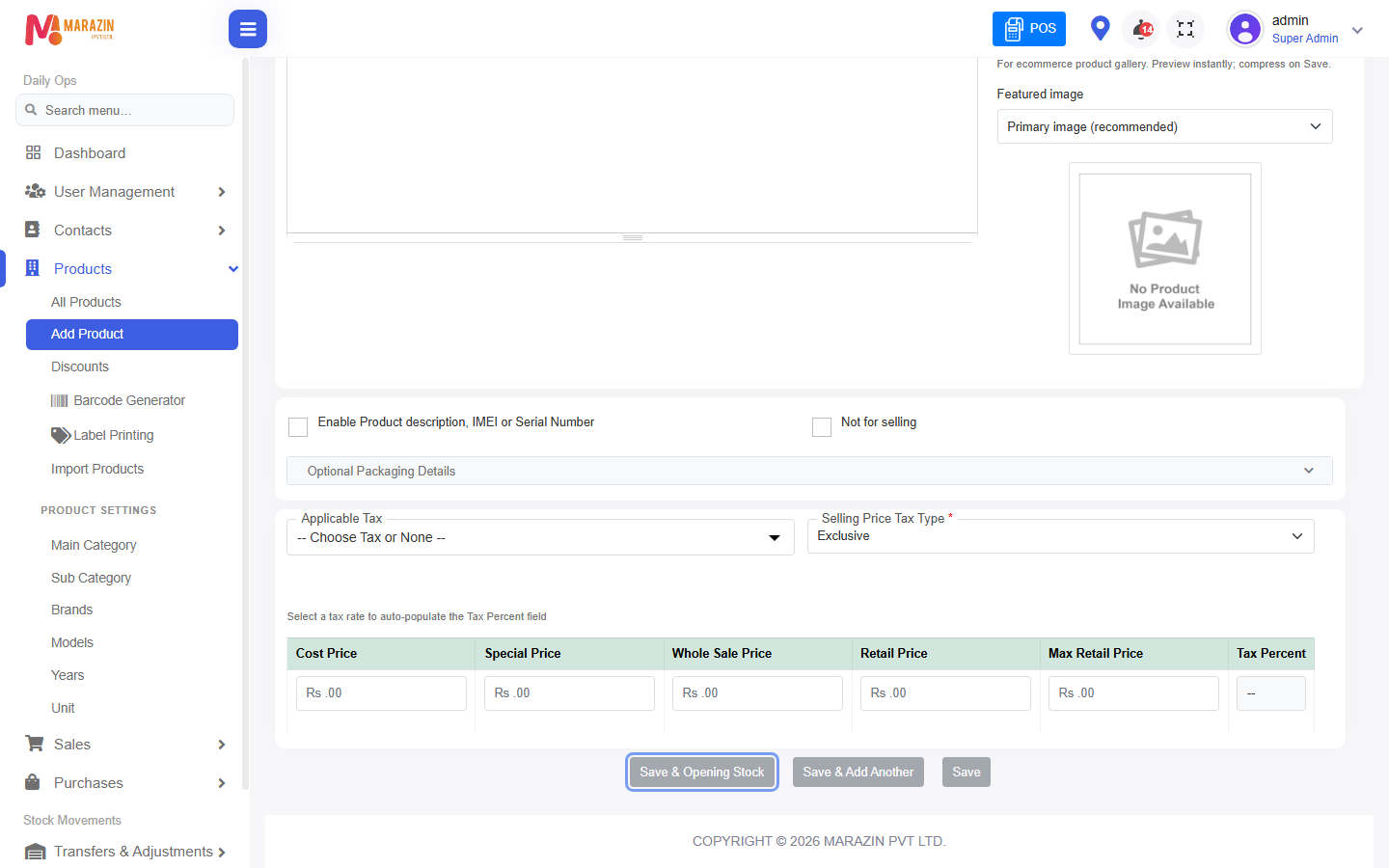
Look for: price table and Save & Opening Stock (blue outline).
Full walkthrough: How to add a product.
2. What does each field mean? Which are required?
| Field | Required? | Why |
|---|---|---|
| Product Name | Yes | What staff see |
| Product SKU | No | Blank = system creates a SKU |
| Product Unit | Yes | How qty is counted (Pcs, Kg…) |
| Product Brand | Yes | Catalog filter and reports |
| Main Category | Yes | Groups products |
| Sub Category | No | Finer grouping |
| Business Locations | Yes | Which shops can use this product |
| Manage Stock? | Default on | On = track qty; Off = unlimited |
| Alert Quantity | No | Low-stock warning (managed stock) |
| Cost / Retail / Wholesale | Yes | Master price list |
| Special / Max Retail | Recommended | Extra sell tiers / MRP |
| Product image | No | Easier recognition |
| IMEI / Serial | No | Only for serial-tracked items |
| Not for selling | No | Hides item from POS |
:::info Remember
Required fields show a red * on the form.
:::
3. What is Manage Stock?
| Manage Stock? | Meaning |
|---|---|
| On (ticked) | Stock is counted. Opening stock / purchases create batches. POS uses batch prices when batches exist. |
| Off (unticked) | Unlimited-style. No opening stock. POS uses product form prices. |
4. What is opening stock? How do I add it?
Opening stock = quantity already on the shelf when you first put the product into BillShop.
It is not a supplier purchase bill.
- Product must have Manage Stock? on.
- Click Save & Opening Stock, or later All Products → Action → Add or Edit Opening Stock.
- Enter Location, Quantity, Unit Cost. Optional: Batch No, Expiry Date.
- Click Save / Update.
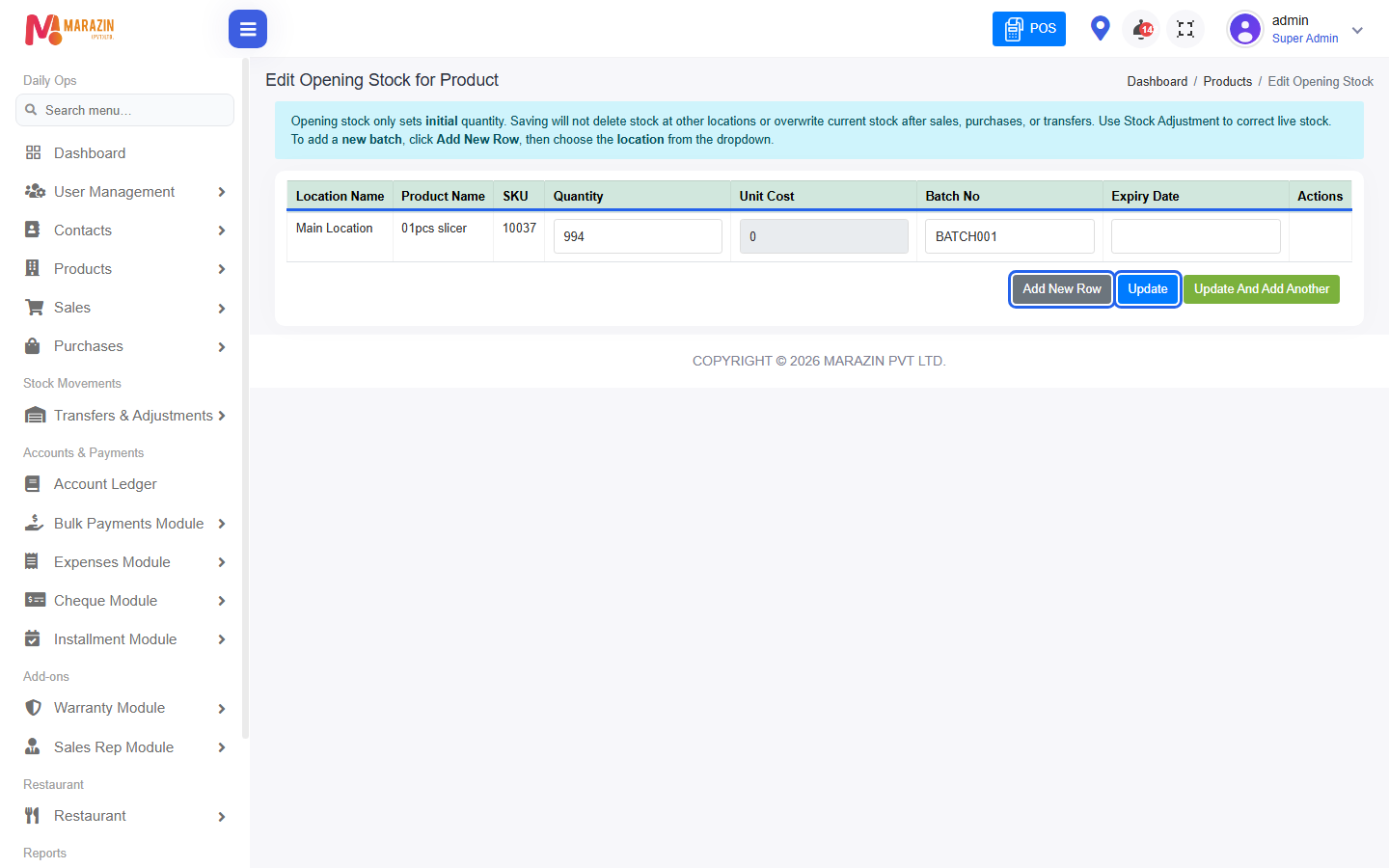
Look for: location / qty / unit cost row, Add New Row, Update (blue outline).
Details: Opening stock and batches.
5. Opening stock “Add New Row” — what happens?
Each new row creates another batch for the same product.
Use a new row when you need another location, different cost / sell price, different expiry, or a new lot.
Always pick Location Name on every new row.
6. What is a batch? Why manage price on the batch?
A batch is one stock lot with its own quantity, unit cost, sell prices, optional batch no / expiry, and location stock.
Why: Old stock and new stock can have different buy/sell prices. POS sells from the batch.
7. Is the product form price the real POS price?
Short answer: Only for unlimited products (Manage Stock? off).
| Product type | POS takes price from |
|---|---|
| Managed stock + batches | Batch prices |
| Unlimited stock | Product form prices |
8. I edited the product price — POS did not update. Why?
Edit updates the product master only. Existing batches keep old prices.
Fix (managed stock)
- Products → All Products.
- Action → Edit Batch Prices.
- Change prices on the batch rows.
- Click Save Changes.
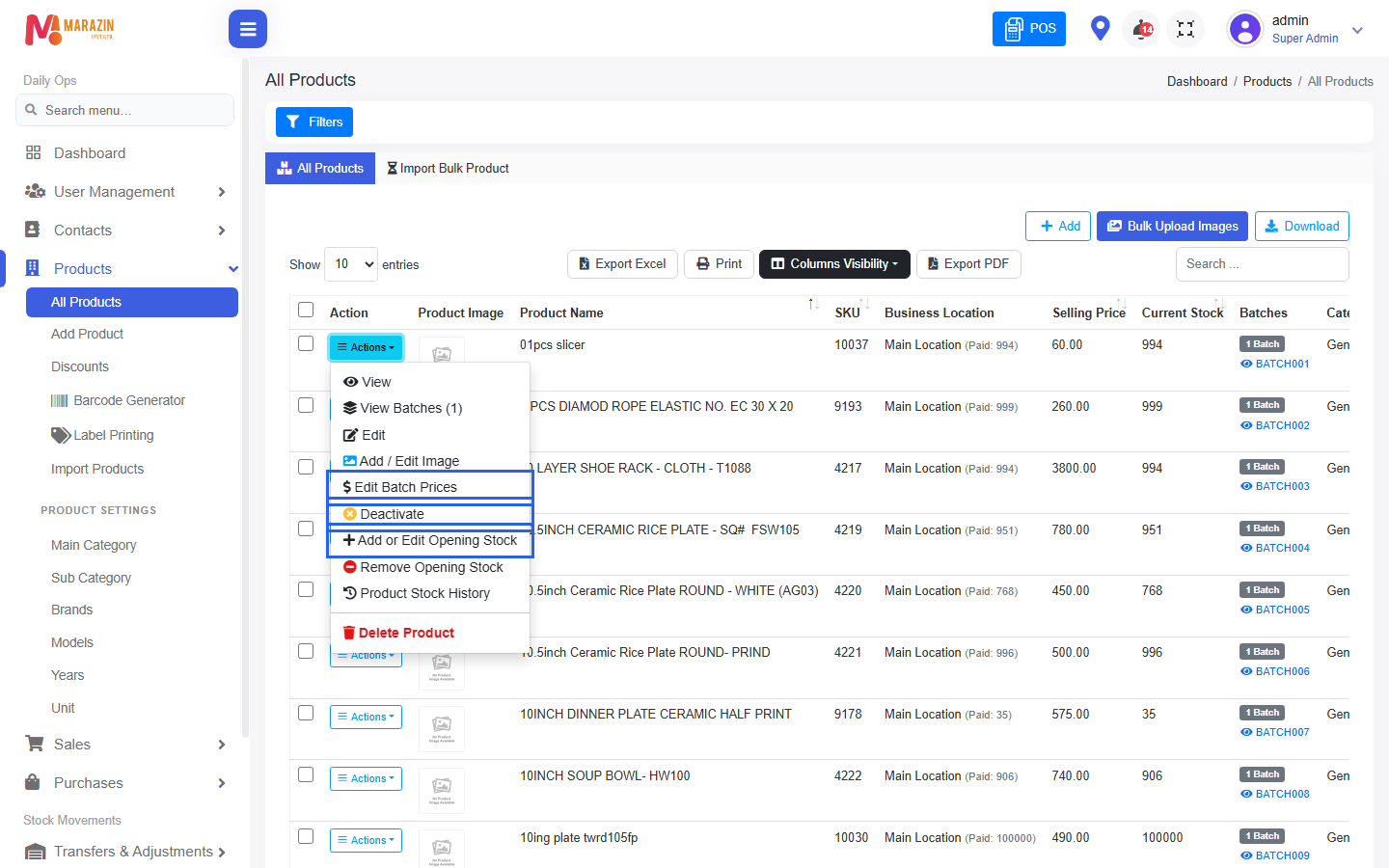
Look for: Edit Batch Prices, Deactivate, Add or Edit Opening Stock (blue outline).
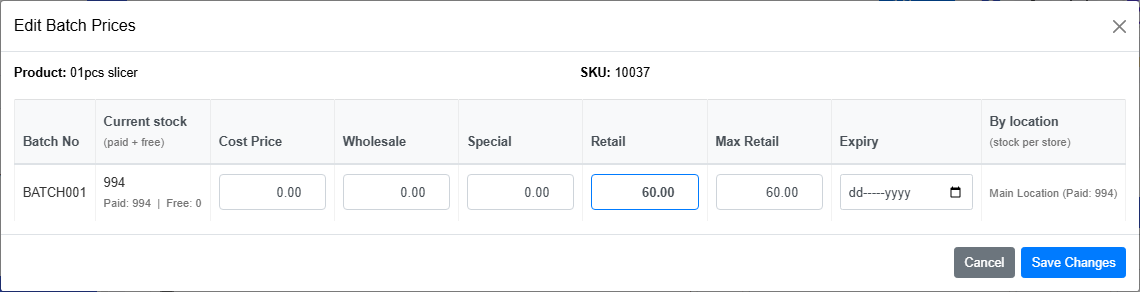
Look for: Cost / Wholesale / Special / Retail / Max Retail and Save Changes.
Unlimited stock: Action → Edit → change form prices → Save.
Full action list: Edit product and prices.
9. Same product, two price types / different expiry — how?
Keep one product. Do not create duplicate product names.
- Add separate batches (opening stock rows or purchases).
- Set each batch’s prices in Edit Batch Prices.
- POS picks retail / wholesale / special by customer type.
10. How do I upload a product image?
- On Add / Edit form, click Browse… under Product image (max 5MB after compress).
Or from the list: Action → Add / Edit Image.
Look for: Browse… on the right.
11. How do I deactivate a product?
- Products → All Products.
- Action → Deactivate.
- Inactive products stay on the list but do not sell on POS.
:::tip Prefer deactivate over delete If the product was used in sales or purchases, delete is usually blocked. :::
12. How do I assign a product to another location?
One product: Action → Edit → select all shops in Business Locations → Save.
Several products: tick rows on All Products → Add Location → choose location(s) → Save.
13. How do All Products filters work?
Open Filters, then narrow by Product, Category, Subcategory, Brand, Location, Stock Status. Use Clear to reset.
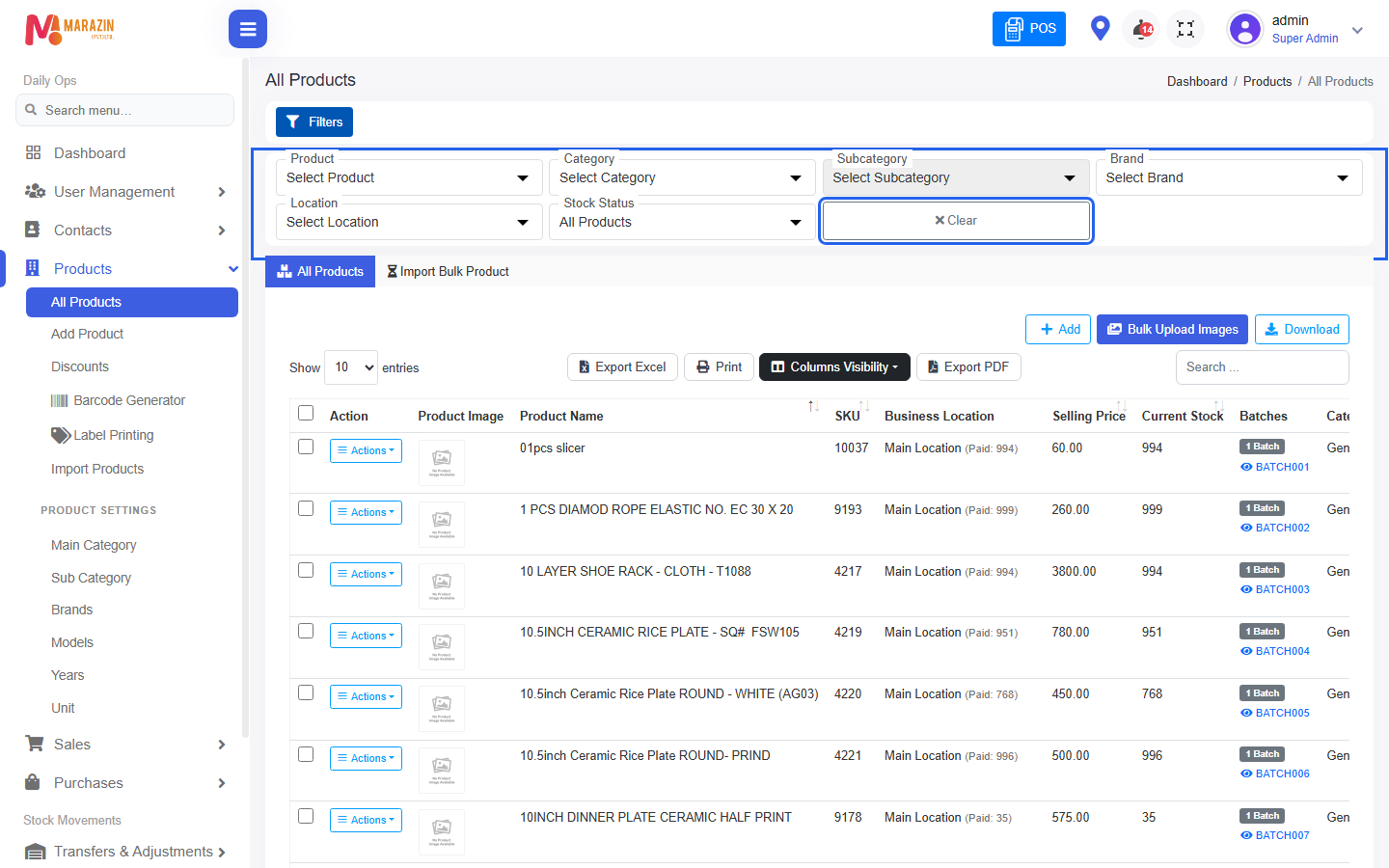
Look for: Filters panel (blue outline) and Import Bulk Product tab.
14. Can I add products in bulk?
Yes — Products → Import Products (or Import Bulk Product tab).
- Download template file.
- Fill the Excel (match header names).
- Select Location for Import (required).
- Upload.
- Check All Products.
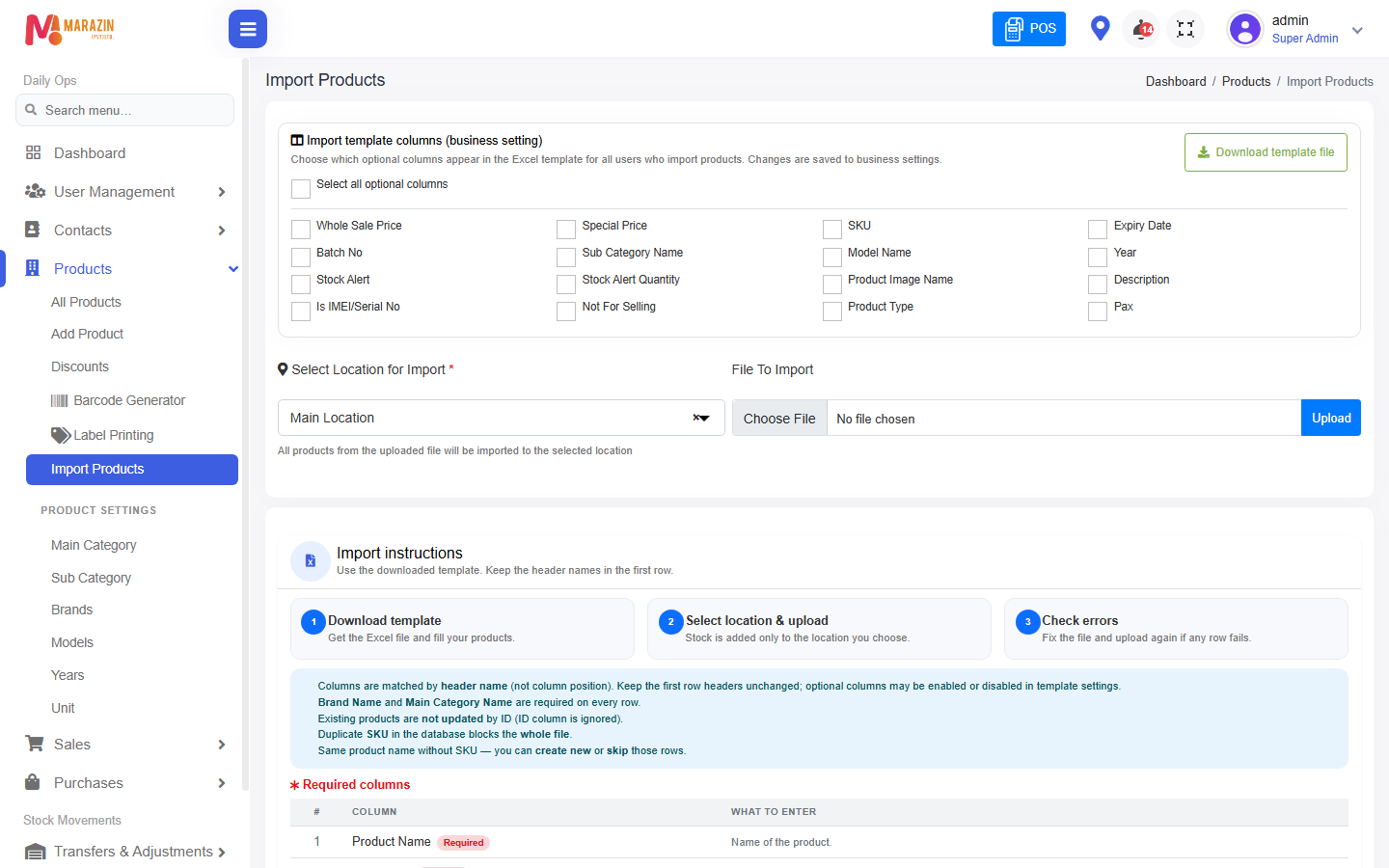
Look for: Download template file, Select Location for Import, Upload.
Rules: Brand + Main Category required every row · duplicate SKU can block the whole file · existing products are not updated by ID · qty creates stock/batch at the selected location.
More: Import products.
15. Can I delete a product?
Sometimes.
- Action → Delete Product.
- If batches have sales / purchases / returns / transfers / adjustments → delete is blocked.
- Use Deactivate instead.
Remove Opening Stock only removes opening entries — not a full product delete.