Opening stock and batches
Who can use this: manage opening stock. View batches may need product batch view permission. Edit batch prices needs edit batch prices. Where to find it: After Save & Add Opening Stock, or Products > All Products > Action > Add or Edit Opening Stock
What is opening stock?
Opening stock = the quantity already on the shelf when you first put the product into BillShop.
It is not a purchase bill from a supplier. It only sets the starting quantity.
The system message on the page says:
- Opening stock only sets initial quantity.
- Saving will not delete stock at other locations.
- It will not overwrite live stock after sales, purchases, or transfers.
- To correct live stock later, use Stock Adjustment.
What is a batch?
A batch is one stock “lot” of the same product with its own:
- Quantity
- Unit Cost
- Batch No (optional code)
- Expiry Date (optional)
- Prices (cost / wholesale / special / retail / max retail)
- Location (which shop holds that qty)
Why batches matter
Same product can have:
- Different buy prices (old stock vs new stock)
- Different sell prices
- Different expiry dates
Example: same phone model —
| Batch | Qty | Cost | Retail | Expiry |
|---|---|---|---|---|
| A | 5 | 40,000 | 48,000 | — |
| B | 3 | 42,000 | 49,500 | 2027-01 |
On POS, managed-stock products use batch prices (not only the product form price).
Manage Stock? vs unlimited
| Manage Stock? | Meaning |
|---|---|
| Ticked (on) | Stock is counted. Sales reduce qty. Opening stock / purchases create batches. POS uses batch prices when batches exist. |
| Unticked (off) | Treated like unlimited stock. No opening-stock button. POS uses the product price list on the product form. |
How to add opening stock (first time)
- Add the product with Manage Stock? ticked.
- Click Save & Add Opening Stock.
- Page title: Add Opening Stock for Product.
- Fill the row:
| Column | What to enter |
|---|---|
| Location Name | Which shop holds this stock. |
| Product Name | Filled for you. |
| SKU | Filled for you. |
| Quantity | How many pieces on the shelf. |
| Unit Cost | Cost for this batch. |
| Batch No | Optional lot code. |
| Expiry Date | Optional expiry. |
-
Click Save.
-
Or Save and Add Another if you will add more products’ opening stock.
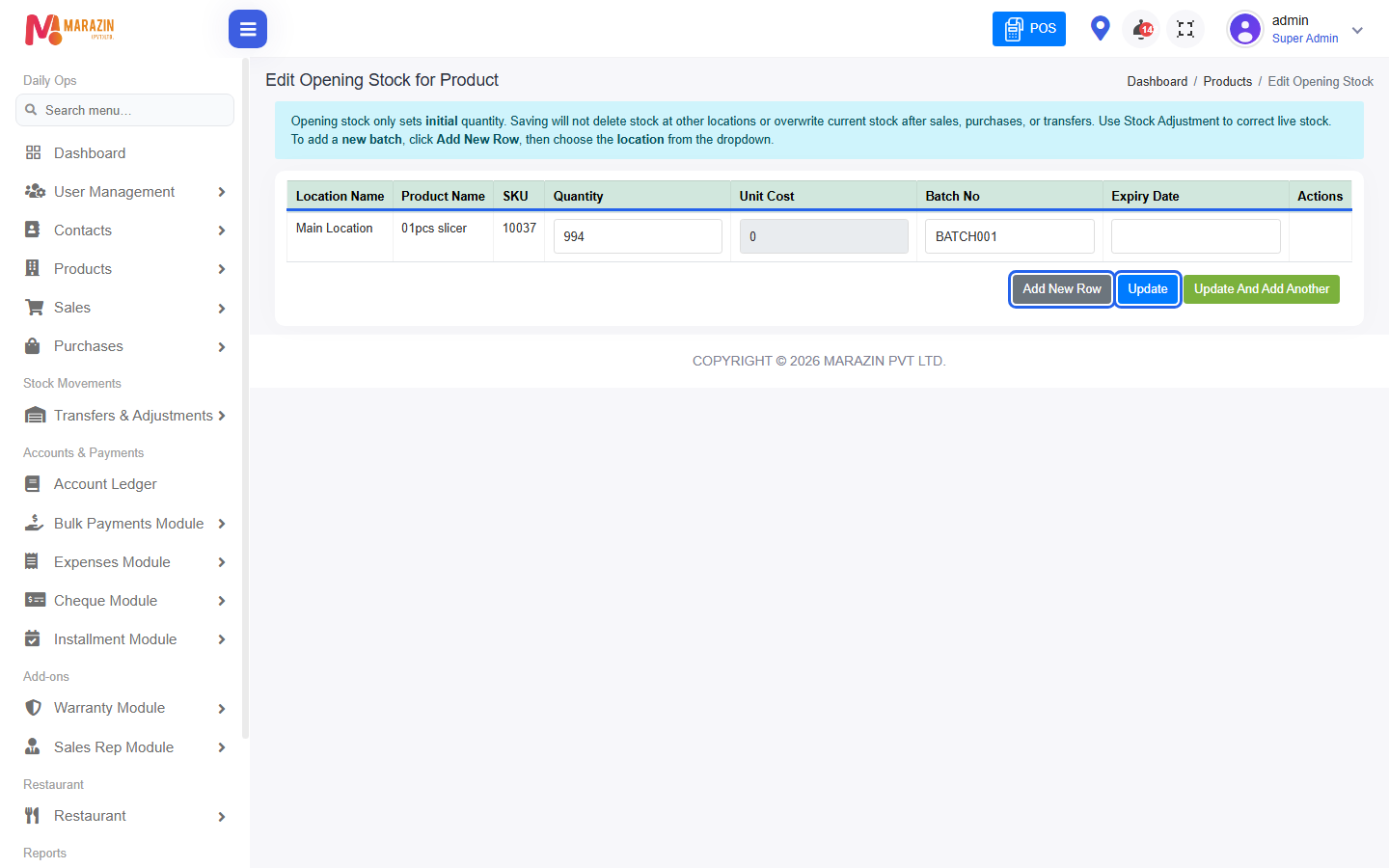
What does Add New Row do?
Click Add New Row when you need another batch for the same product.
Use a new row when:
- Same product in another location
- Same location but different price
- Same location but different expiry
- New lot arrived that should not mix with the old lot
Then choose the location from the dropdown on that new row.
Same product, different price / expiry — how to manage
- Keep one product (one name / SKU).
- Do not create duplicate product names for each price.
- Add separate opening-stock rows (batches) with different Unit Cost, prices (via Edit Batch Prices), and Expiry Date.
- Later purchases also create new batches automatically.
How prices work (important)
| Product type | Where POS takes price from |
|---|---|
| Manage Stock? on + batches exist | Batch retail / wholesale / special (batch table) |
| Manage Stock? off (unlimited) | Product price fields on Add/Edit Product |
Change prices for managed stock
- Open Products > All Products.
- Open Action on the product.
- Click Edit Batch Prices.
- Change Cost / Wholesale / Special / Retail / Max Retail per batch.
- Click Save Changes.
Change prices for unlimited stock
- Open Action > Edit.
- Change the price table on the product form.
- Click Save.
IMEI / Serial on opening stock
If the product has Enable Product description, IMEI or Serial Number on:
- When quantity is entered, the system may ask for IMEI count.
- Modal title: Enter IMEI Numbers.
- Paste one IMEI per line, or use + Add Row.
- Click Save IMEIs, or Skip if allowed.
Use IMEI for phones / serial items so each unit is tracked.
Edit or remove opening stock later
From All Products > Action:
| Action | What it does |
|---|---|
| Add or Edit Opening Stock | Open the opening stock page again. |
| Remove Opening Stock | Removes only opening-stock entries — not purchase or sale history. |
Tips
- Opening stock = start qty. Day-to-day buying = Add Purchase.
- Different expiry → new batch row.
- Different sell price for old vs new stock → Edit Batch Prices per batch.
Common problems
| Problem | Solution |
|---|---|
| No Save & Add Opening Stock | Tick Manage Stock?, and role needs manage opening stock. |
| Stock wrong after sales | Do not “fix” with opening stock — use Stock Adjustment. |
| POS price looks old | For managed stock, edit Edit Batch Prices, not only product Edit. |
| Add New Row location empty | Pick Location Name on every new row. |