Edit product and prices
Who can use this: edit product. Batch prices need edit batch prices. Images need edit product or gallery upload permission. Where to find it: Products > All Products > Action
What is this?
After a product exists, you change name, settings, photos, opening stock, or batch prices from the list Action menu.
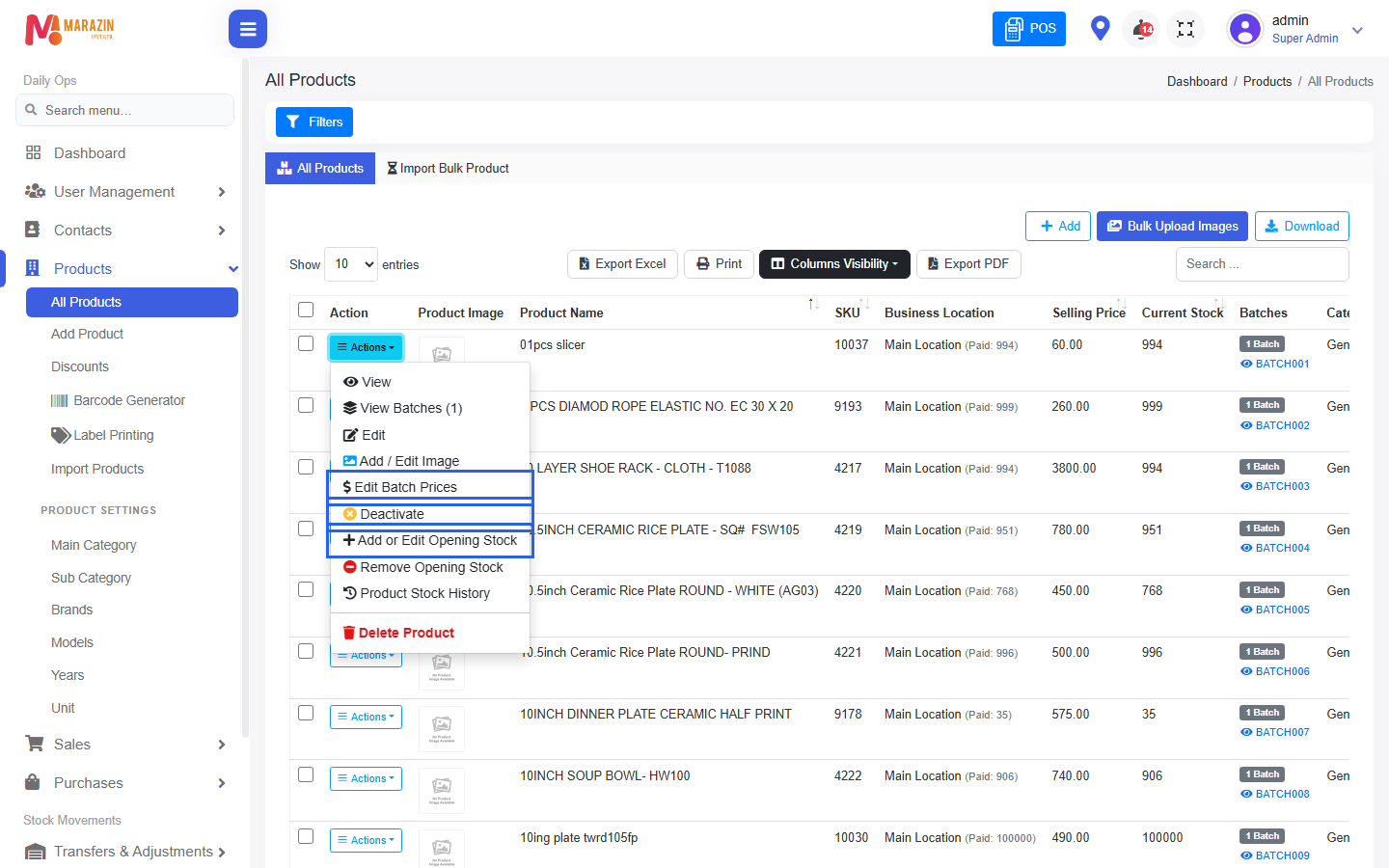
Action menu — what each item means
Open Action on a product row. You may see:
| Action | When it shows | What it does |
|---|---|---|
| View | View permission | Read product details. |
| View Batches (N) | Product has batches | See batch no, stock, retail, expiry, locations (read-only). |
| Edit | edit product | Change name, SKU, unit, brand, category, locations, Manage Stock, product-level prices, IMEI flag, images fields on the form. |
| Add / Edit Image | Edit or gallery permission | Add or change product photo(s). |
| Edit Batch Prices | edit batch prices | Change prices per batch (managed stock). Modal title: Edit Batch Prices. |
| Deactivate / Activate | edit product | Turn product off/on for use. |
| Add or Edit Opening Stock | manage opening stock | Set or change initial batches. |
| Remove Opening Stock | manage opening stock | Delete opening-stock entries only. |
| Product Stock History | History permission | See stock in/out trail. |
| IMEI Entry | IMEI product + permission | Enter / manage IMEI numbers. |
| Delete Product | delete product | Remove product (use carefully). |
How to edit product details
- Open Products > All Products.
- Open Action > Edit.
- Change fields (name, category, locations, tax, product prices, Manage Stock?, etc.).
- Click Save.
Multiple locations
On Edit, Business Locations can select more than one shop. That product can then be stocked / sold in those shops.
How to change selling prices
A) Managed stock product (batch)
- Action > Edit Batch Prices.
- For each batch row, set Cost / Wholesale / Special / Retail / Max Retail.
- Check Expiry and stock by location on the same screen.
- Click Save Changes.
POS uses these batch prices for managed stock.
B) Unlimited stock product (Manage Stock? off)
- Action > Edit.
- Change Retail Price (and other product price fields).
- Save.
POS uses the product form prices.
How to add / edit image
- Action > Add / Edit Image.
- Choose the image file(s).
- Save in the image modal.
You can also set Product image while adding/editing the product form.
Filters on All Products (find the right item)
The list can filter by location, stock status (In Stock, Out of Stock, Low Stock, etc.), and search. Use filters before you edit so you do not change the wrong product.
Tips
- Name / category change → Edit.
- Price change for stocked goods → Edit Batch Prices.
- New shelf qty for a new lot → Add or Edit Opening Stock or a Purchase.
- Wrong live qty after sales → Stock Adjustment, not opening stock.
Common problems
| Problem | Solution |
|---|---|
| No Edit Batch Prices | Role needs edit batch prices, or product has no batches yet. |
| Changed Edit price but POS still old | Product is managed stock — change batch prices. |
| Add / Edit Image missing | Need edit / gallery permission. |