Barcode and labels
Who can use this: print barcodes and print labels. Where to find it: Products > Barcode Generator and Label Printing
What is this?
Barcode Generator builds barcode pictures for products. Label Printing prints shelf labels.
Before you start
The product must already exist. Know the label size your printer uses.
Steps
-
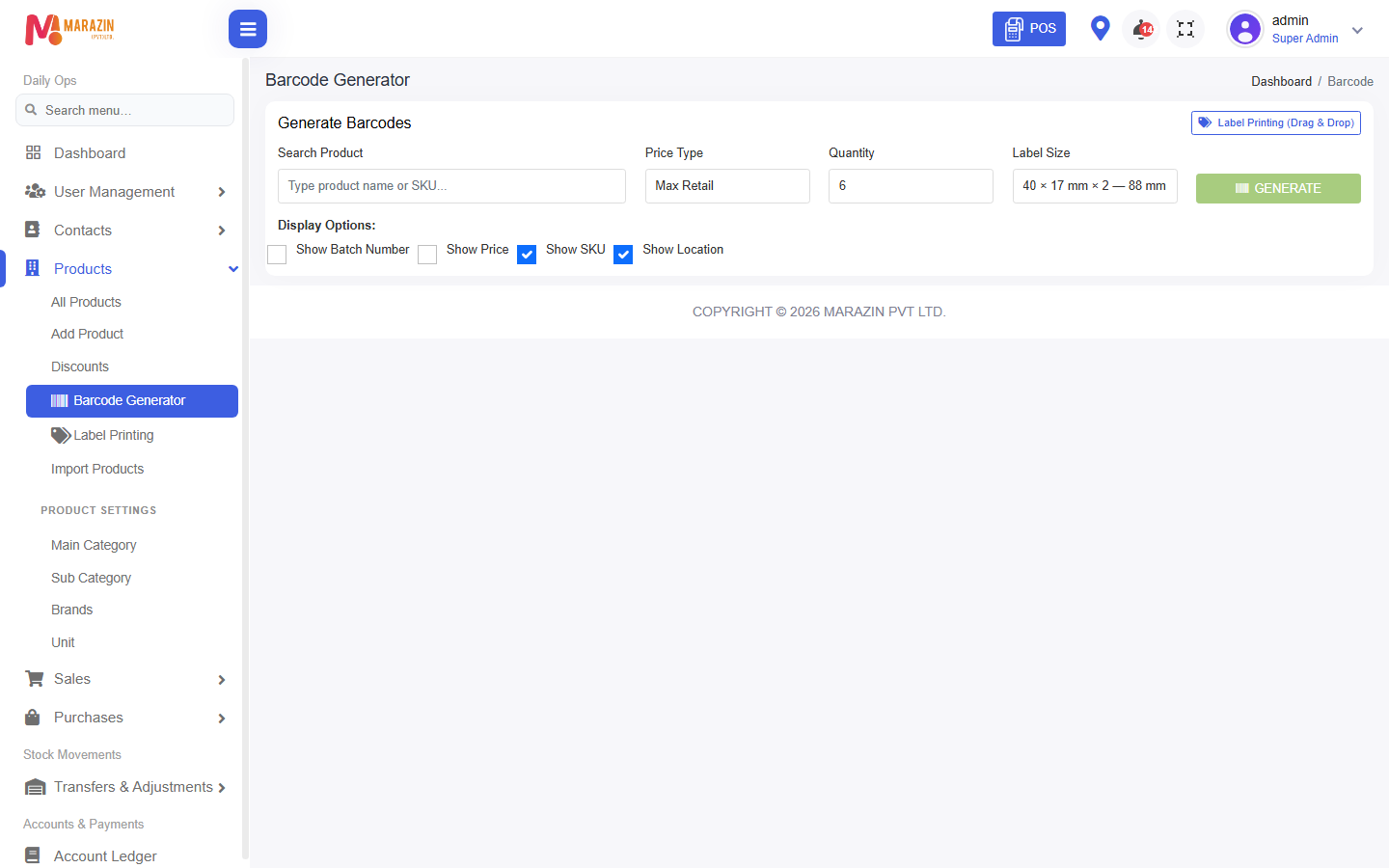
Open Products > Barcode Generator.
-
The title is Barcode Generator.
-
Choose the product and the label size.
-
Tick Show SKU or Show Price if you want those on the label.
-
Click GENERATE.
-
Print from Generated Barcodes.
Label printing
-
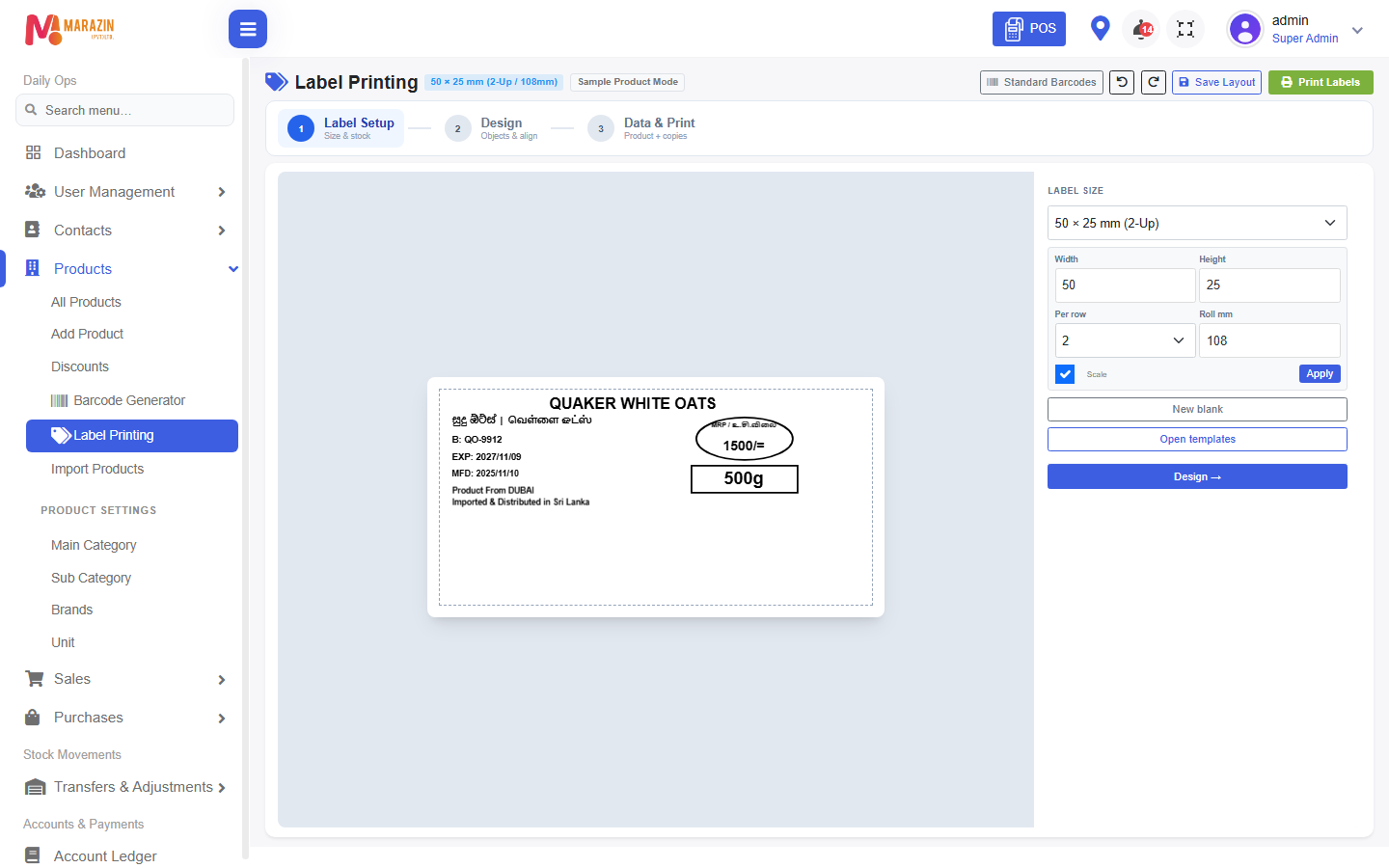
Open Products > Label Printing.
-
Follow Data & Print.
-
Click Print when the preview looks right.
Field guide
| Field | Required? | What to enter |
|---|---|---|
| Label size | Yes | The size that matches your sticker roll. |
| Show SKU | No | Tick to print the code. |
| Show Price | No | Tick to print the price. |
| Show Location | No | Tick to print the shop name. |
| Show Batch Number | No | Tick when the item has a batch. |
What you will see
A barcode picture appears after GENERATE. A scanner can type that code into POS search.
Tips
- Match the sticker size before you print a full roll.
- Test one label before a large print.
Common problems
| Problem | Solution |
|---|---|
| GENERATE stays off | Pick a product and a size first. |
| The scan finds nothing | Save the same code as Product SKU. |