How to add a product
Who can use this: create product. Opening stock needs manage opening stock. Where to find it: Products > Add Product
What is this?
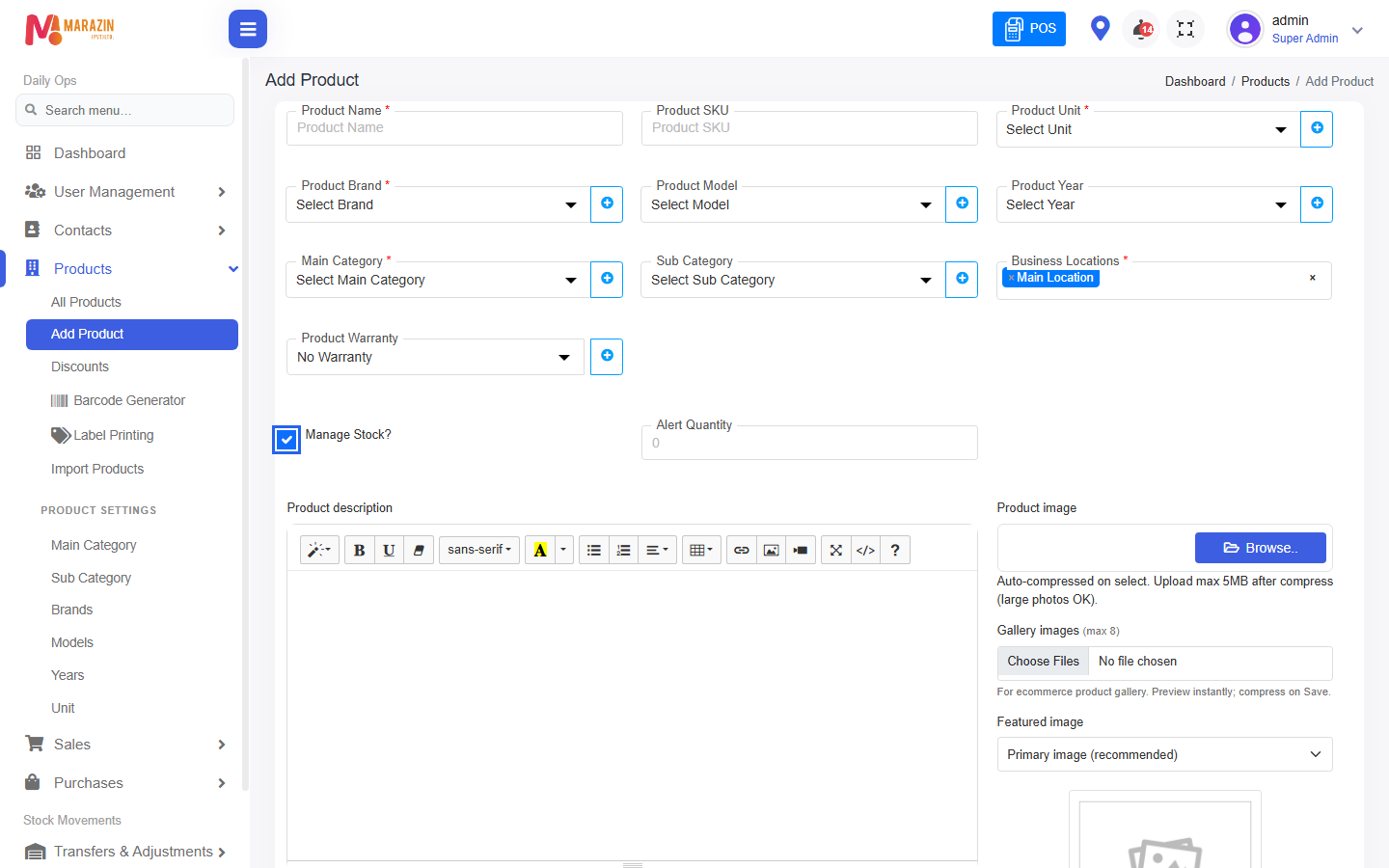
Create one sellable item for POS, purchases, and stock reports. Page title: Add Product.
Client quick answers
| Question | Short answer |
|---|---|
| How to add a product? | Steps below. |
| What is opening stock? | Starting shelf qty — see Opening stock and batches. |
| Manage Stock tick? | On = count stock + batches. Off = unlimited, product prices only. |
| Why brand / unit / locations? | Unit counts qty; brand groups items; locations = which shops sell it (multi-select). |
| IMEI? | Turn on only for serial-tracked items (phones…). |
| Different price / expiry? | Same product + different batches. |
Full FAQ: Product client FAQ.
Before you start
- Create Unit, Brand, Main Category (and Sub Category if needed).
- Know which Business Locations sell this item (you can select many).
- Decide: managed stock or unlimited.
- Know cost and selling prices.
Steps — add the product
- Open Products > Add Product.
- Type Product Name.
- Type Product SKU (barcode / code) if you use one.
- Pick Product Unit (or + to add a unit).
- Pick Product Brand (or +).
- Pick Main Category (or +).
- Pick Sub Category if needed.
- Pick Business Locations — multi-select all shops that need this item.
- Optional: pick Product Warranty.
- Tick Manage Stock? for normal shop stock (recommended).
- Set Alert Quantity for low-stock warning.
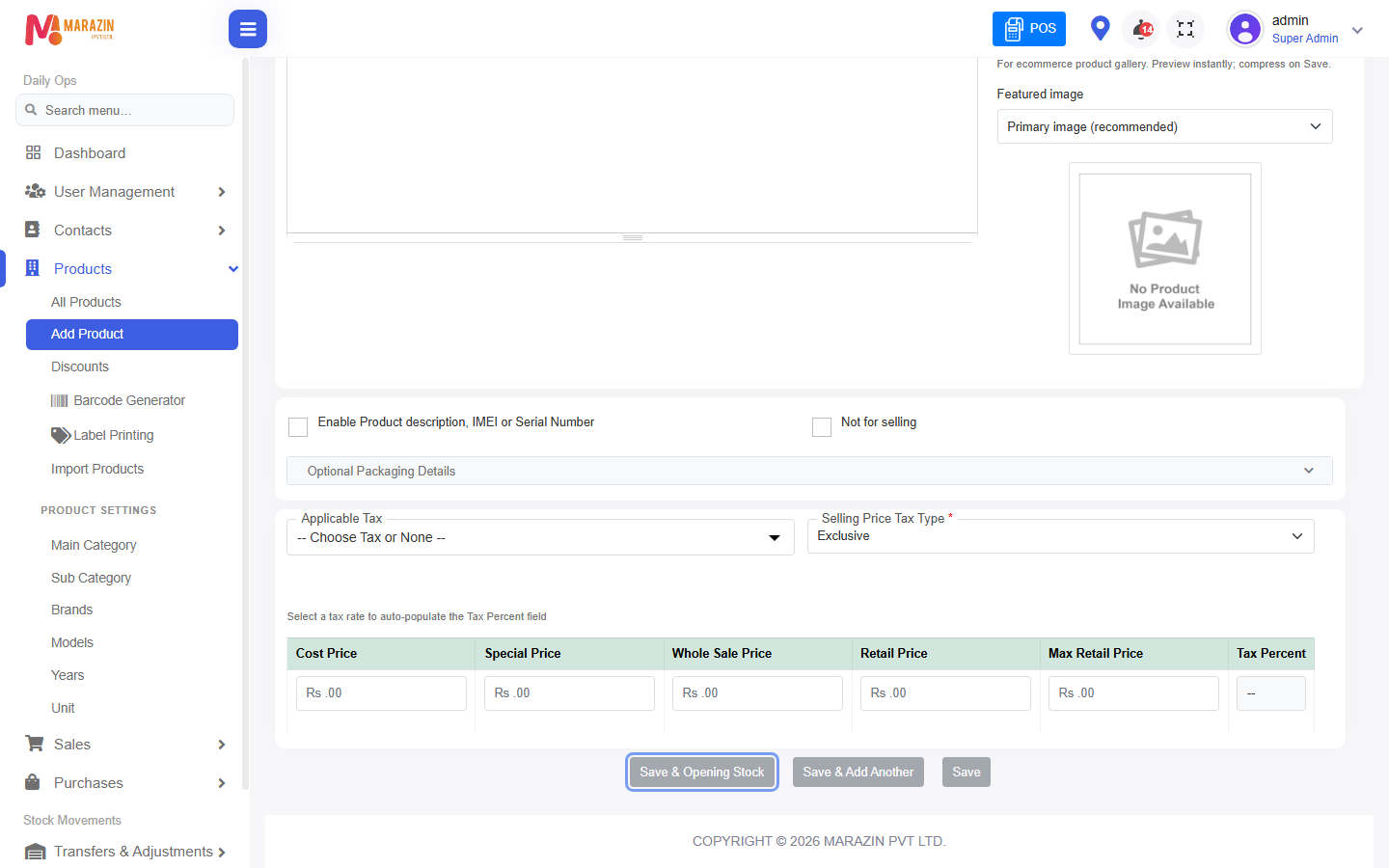
- Optional: tick Enable Product description, IMEI or Serial Number for serial items.
- Optional: add Product description and Product image.
- Fill the price table (Cost Price, Special, Whole Sale, Retail, Max Retail, tax if shown).
- Click Save, or Save And Add Another, or Save & Add Opening Stock.
Why these fields?
| Field | Why it exists |
|---|---|
| Product Unit | POS and purchases need a count unit (Pcs, Kg…). |
| Product Brand | Filtering, reports, and clear catalog. |
| Main / Sub Category | Organise products in lists and reports. |
| Business Locations | One product can sell in many shops; stock stays per location. |
| Manage Stock? | On = real stock + batches. Off = unlimited (service-like / no qty limit). |
| Alert Quantity | Warn when stock is low (managed stock). |
| IMEI / Serial | Track each unit by number when required. |
| Product image | Easy recognition on lists. |
| Price table | Default / unlimited prices; managed stock also uses batch prices after stock exists. |
Manage Stock? (read this)
| Manage Stock? | Behaviour |
|---|---|
| Ticked | Stock is managed. You can add opening stock. Purchases add qty. Sales reduce qty. POS prefers batch prices. |
| Unticked | Unlimited-style. Opening stock hidden. POS uses product form prices. |
Prices — product form vs batch
- While adding, you fill the product price table.
- If Manage Stock? is on and you add opening stock / purchases, BillShop stores batches.
- For managed stock, day-to-day POS selling price comes from the batch (edit via Edit Batch Prices).
- For unlimited stock, POS keeps using the product prices from Edit.
Details: Opening stock and batches.
Save buttons
| Button | Use |
|---|---|
| Save | Save product only. |
| Save And Add Another | Save and open a blank form for the next item. |
| Save & Add Opening Stock | Save, then enter starting qty / batches. |
Opening stock (after save)
-
Click Save & Add Opening Stock.
-
Enter location, quantity, unit cost, optional batch no and expiry.
-
Use Add New Row for another location or another batch (different price/expiry).
-
Save.
After save — sell on POS
- Open POS.
- Search Product Name or SKU, or scan barcode.
- Sell — Make a sale.
Examples
A — Simple retail item
Manage Stock on → Retail 500 → Save → purchase later for stock.
B — Already on shelf
Manage Stock on → Save & Add Opening Stock → Qty 20, location Main → Save.
C — Same item, two expiries
One product → opening stock Add New Row twice → two expiry dates → two batches.
D — Phone with IMEI
IMEI option on → opening stock qty 2 → enter 2 IMEIs → save.
Common problems
| Problem | Solution |
|---|---|
| Cannot save | Fill every required (*) field. |
| Unit/brand empty | Create them first or use +. |
| No opening stock button | Tick Manage Stock? + permission manage opening stock. |
| Not on POS | Check locations, for-selling, name/SKU. |
| Wrong price on POS | Managed stock → change Edit Batch Prices. |