Make a sale (POS)
Who can use this: access pos (or access pos v2 for POS (New) if your shop uses it). Where to find it: Top bar POS, or Sales > POS
What is this?
The counter screen for daily selling — same idea as a full POS “Selling” guide: add products, choose customer, take payment, print.
When to use it
- Walk-in cash / card sales
- Credit sales to a saved customer
- Mixed payments (MULTIPLE)
- Start a bill and hold it for later
Before you start
- Products exist under Products > All Products.
- Sign in at the correct Location.
- Open the cash register if your shop requires it — Cash register.
- For credit, the customer must exist under Contacts > Customer.
Steps — add products
-
Click POS.
-
Click Search product / SKU....
-
Type the name, SKU, or scan a barcode.
-
Pick the product so it enters the bill.
-
Change the Quantity on that line.
-
Optional: press F8 for line discount (if allowed).
-
Optional: press F9 or use the customer box to pick a customer.
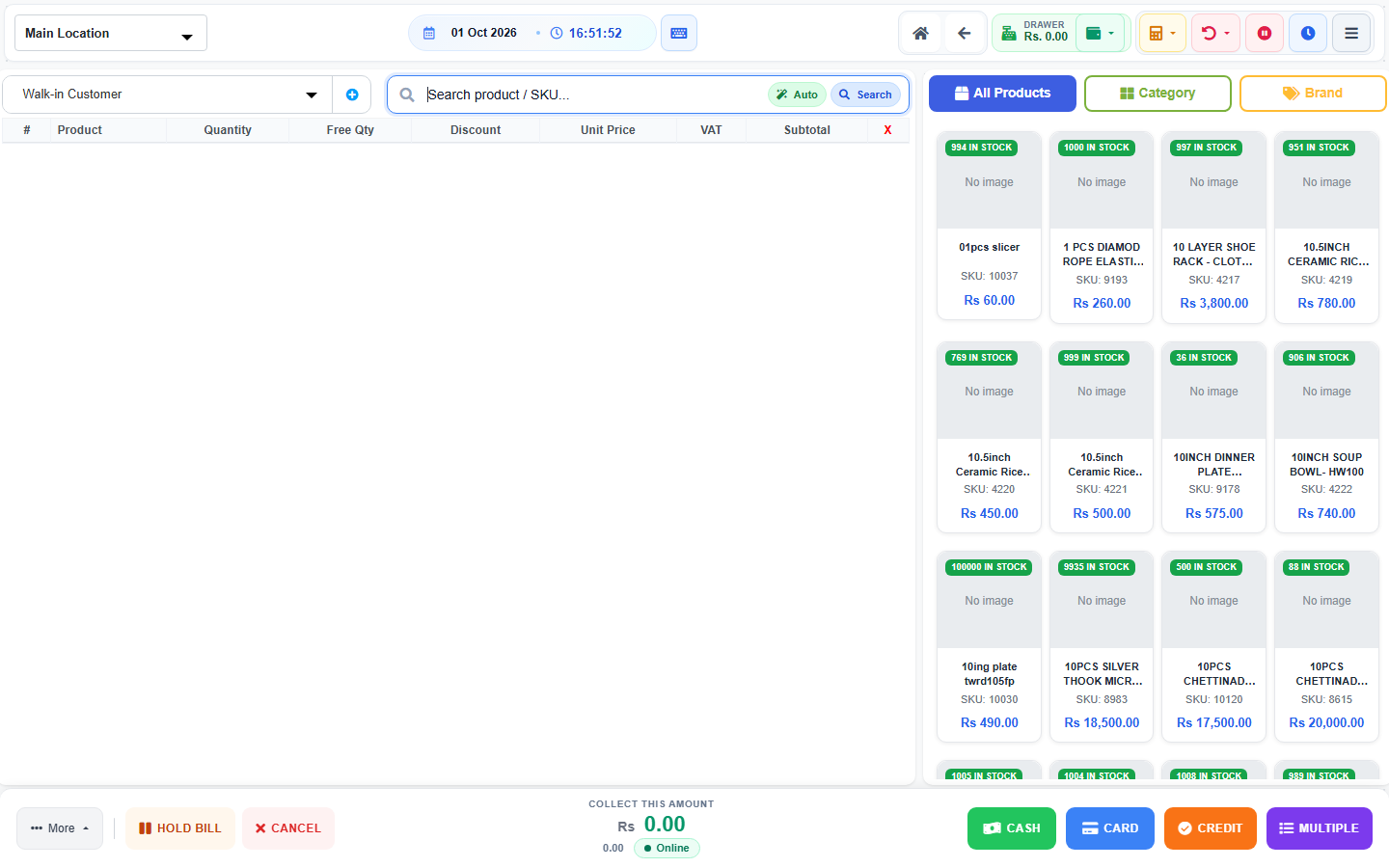
Steps — finish the bill
- Check the total.
- Choose payment: CASH, CARD, CREDIT, or MULTIPLE.
- Follow the pay screen — see Pay the bill.
- Print the receipt when the success screen offers it.
- Start the next customer.
Field guide
| Field | Required? | What to enter |
|---|---|---|
| Search product / SKU... | Yes, to add a line | Name, SKU, or scanned barcode. |
| Quantity | Yes | How many the customer takes. |
| Discount | No | Line discount, if your role allows. |
| Customer | For credit | Saved customer name / phone. |
Examples
Example A — cash grocery sale
Scan 2 items → check qty → CASH → print.
Example B — credit sale
Pick customer → add items → CREDIT → confirm due → print.
Example C — customer will pay later mid-bill
Add items → HOLD BILL → continue later from hold/drafts — Hold bill.
What you will see
- Lines on the bill with price and qty
- Running total
- Payment buttons at the end of the flow
Tips
- F4 returns to product search.
- F2 jumps quantity.
- Ctrl + Z undoes the last added product.
- Keep unused modules off so the left menu stays short.
Common problems
| Problem | Solution |
|---|---|
| Search finds nothing | Check name/SKU under All Products. |
| Price or discount will not change | Price & discount validation is on. |
| Quantity snaps back | POS auto-correct qty to stock is on. |
| Credit blocked | Overdue block may be on, or permission missing. |
| POS missing in menu | Role needs access pos. |