Stock FAQ (client questions)
Who: Staff who move or correct stock between shops.
How to use: Scan Quick answers → open the question → follow steps.
Quick answers
| # | Question | Short answer |
|---|---|---|
| 1 | Where do I see qty by shop? | Reports → Business Reports → Stock Report |
| 2 | Move stock between branches? | Transfers & Adjustments → Add Transfer → Save |
| 3 | When does transfer qty move? | On Save (not only on Mark Completed) |
| 4 | Stock count too high — reduce? | Add Adjustment → Decrease Stock + Reason |
| 5 | Increase without purchase? | Not on Add Adjustment UI (Increase Stock disabled) — use purchase / opening stock |
| 6 | Damaged return items? | Damage Inventory → Repair or Write off |
| 7 | Send damage to supplier? | Select lines → Create pending supplier return |
| 8 | Trade-in stock where? | Trade-In Inventory (transactions via Trade-In Transactions) |
| 9 | Low stock only? | Stock Report scope Low stock |
| 10 | Transfer / Damage menu missing? | Role needs stock-transfer / damage-stock permissions |
1. How do I check stock?
- Open Reports → Business Reports → Stock Report.
- Choose scope: In stock, Low stock, or All.
- Filter Location, Category, Brand, Unit as needed → Reset to clear.
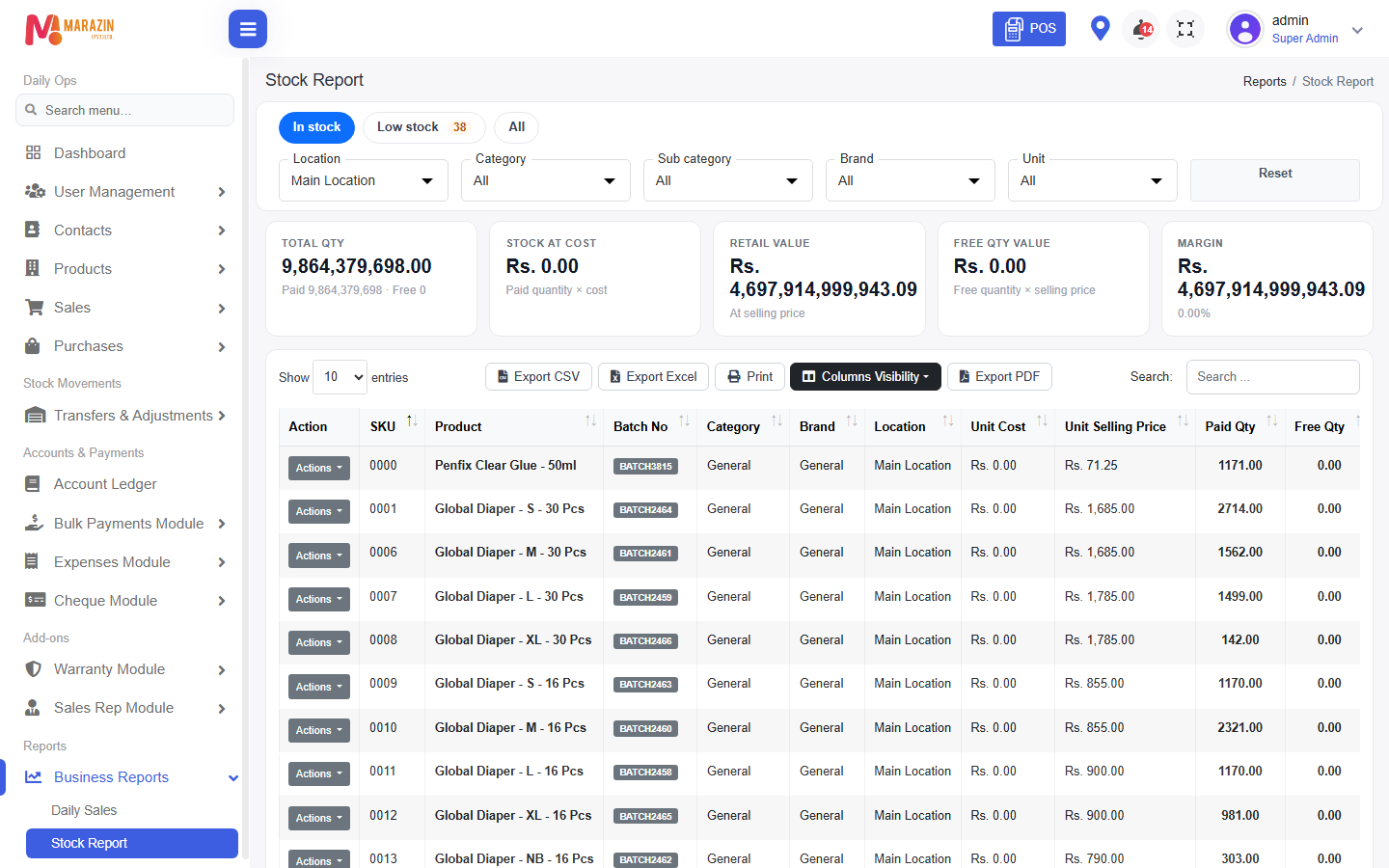
Look for: scope tabs and Location filter.
See Stock report.
2. How do I transfer stock to another shop?
- Open Stock Movements → Transfers & Adjustments → Add Transfer
(menu labels: All Transfers / Add Transfer under Stock Transfers). - Set Date, optional Reference No.
- Pick Location (From) and Location (To) — must be different.
- Search products, enter qty → Save.
- Review under All Transfers. Use Mark Completed if your shop tracks status that way.
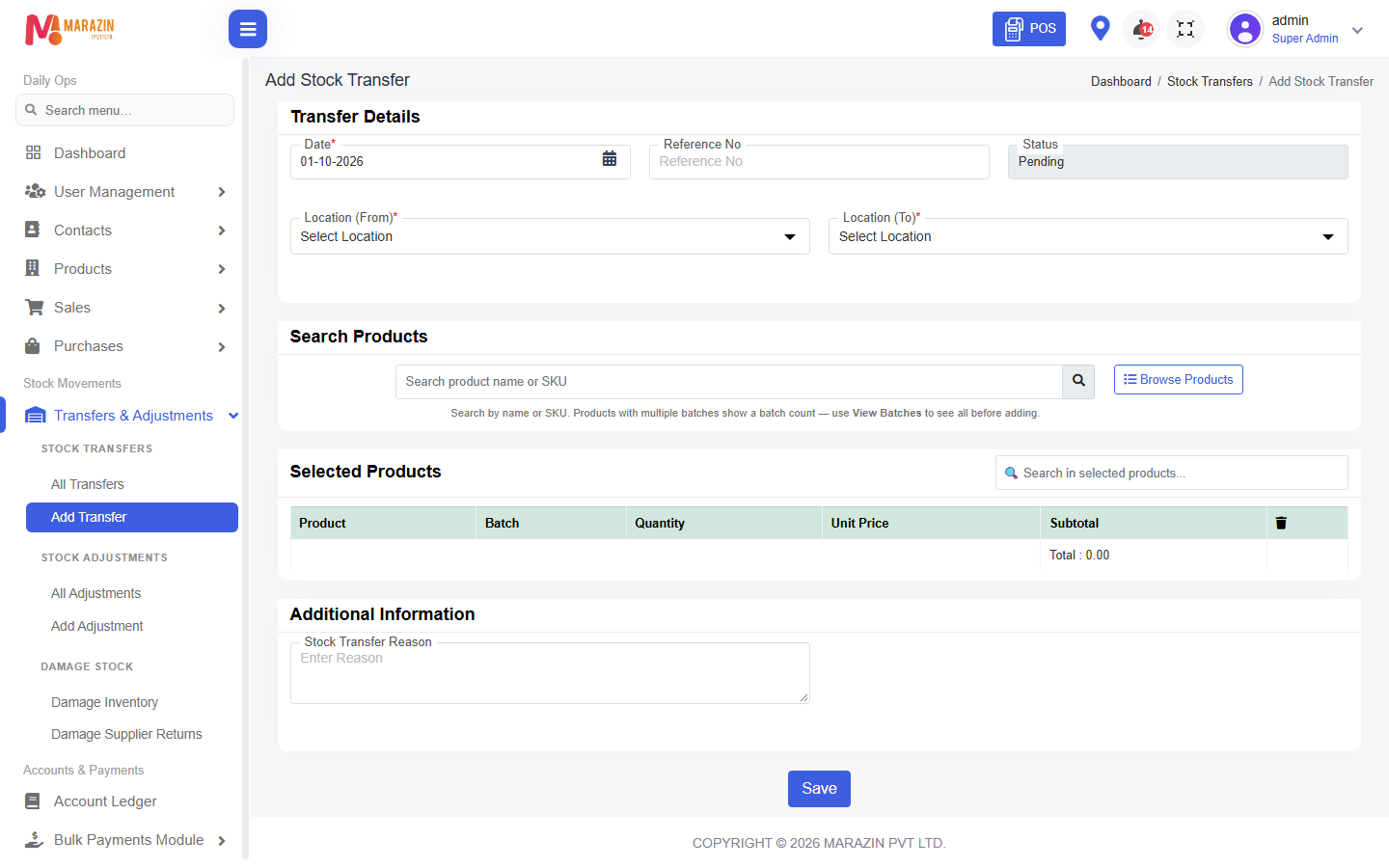
Important: Quantity moves From → To when you Save. Mark Completed updates status for follow-up; it is not the only moment stock moves.
3. How do I decrease stock (adjustment)?
- Open Add Adjustment.
- Pick Business Location, Date, optional Reference No.
- Adjustment Type = Decrease Stock (Increase Stock is disabled on this screen).
- Add products, enter qty, Reason, optional recovered amount.
- Save.
Use this for breakage / count correction down — not for normal purchases.
See Stock adjustment.
4. Damage stock workflow
- Open Damage Inventory.
- Filter Supplier, Customer, Status (Available, In damage, Pending return).
- Row Repair → repair back to shop stock when allowed.
- Row Write off → remove damaged stock.
- Multi-select → Create pending supplier return when returning damage to supplier → track under Damage Supplier Returns.
See Damage stock.
5. Trade-in stock
- Trade-in is accepted on POS when the feature is on.
- Process stock under Trade-In Inventory.
- Use Trade-In Transactions for the register of deals.
- Line actions: Inspect → Save Inspection, then Convert to Stock to sellable stock when ready.
See Trade-in stock.
6. Common “not enough stock” cases
| Situation | What to check |
|---|---|
| Transfer save fails | Location (From) batch qty |
| POS cannot sell | Stock Report for that location; Manage Stock on |
| Adjustment refuses qty | You cannot decrease more than available |
| After transfer, To shop empty | Confirm Save succeeded; check both locations on Stock Report |