Stock adjustment
Who can use this: view stock-adjustment and create stock-adjustment. Where to find it: Transfers & Adjustments > All Adjustments and Add Adjustment
What is this?
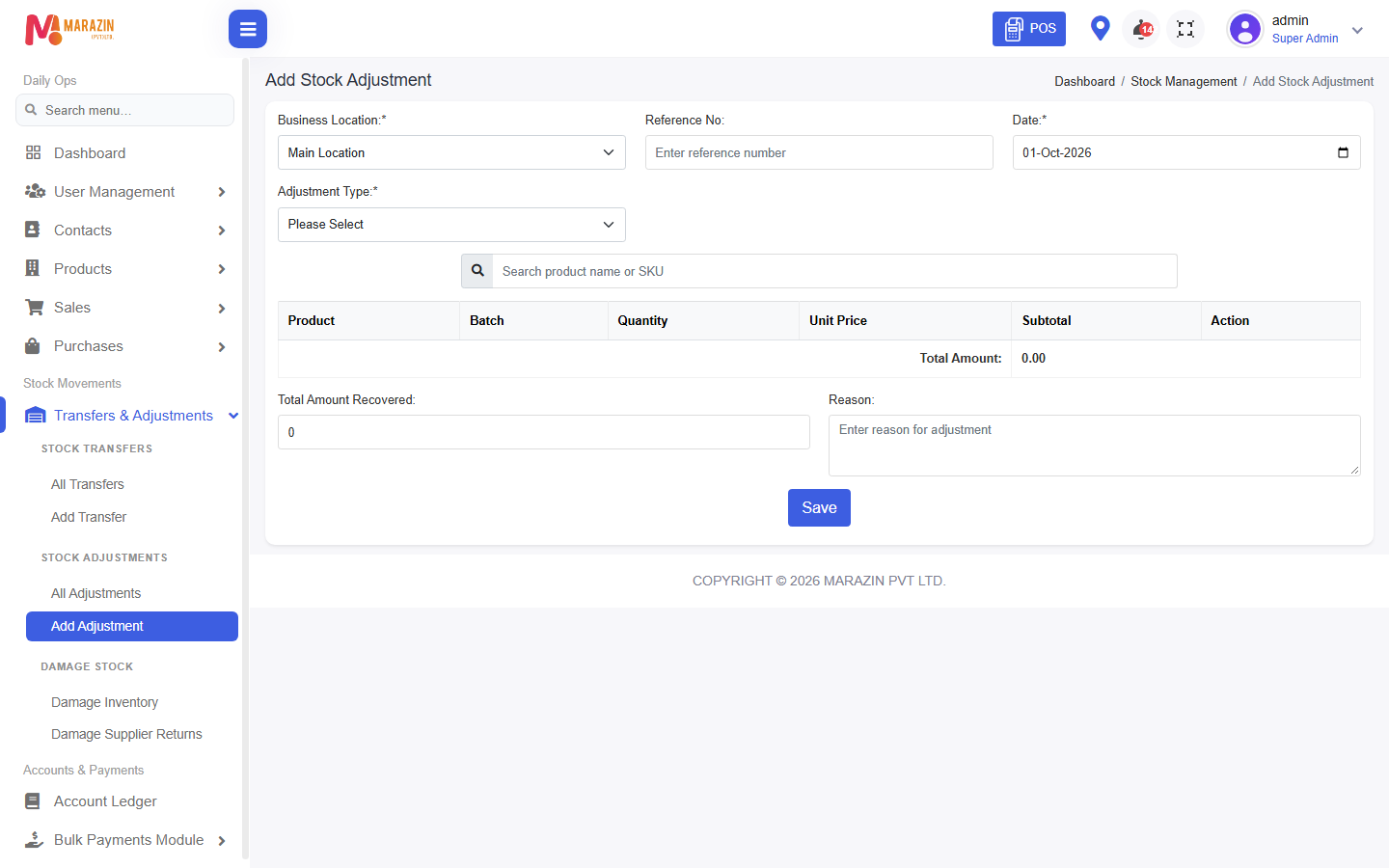
An adjustment fixes the count when the shelf does not match the screen. The form title is Add Stock Adjustment.
Before you start
Count the shelf first. Do not use this for a normal purchase or a sale.
Steps
-
Open Transfers & Adjustments > Add Adjustment.
-
Pick Business Location.
-
Pick Date.
-
Pick Adjustment Type.
-
Add the products and the new quantity.
-
Type Reason so the next person knows why.
-
Click Save.
Field guide
| Field | Required? | What to enter |
|---|---|---|
| Business Location | Yes | The shop you counted. |
| Reference No | No | Your own note number. |
| Date | Yes | The count date. |
| Adjustment Type | Yes | The type shown in the list. |
| Reason | No | Why the count changed. |
| Total Amount Recovered | No | Money recovered, if the form asks. |
What you will see
The row appears on All Adjustments. Stock Report uses the new quantity.
Tips
- Write a clear Reason. Example: damaged tins counted out.
- Opening stock is for the first count only. Later fixes use this page.
Common problems
| Problem | Solution |
|---|---|
| Add Adjustment is missing | Ask for create stock-adjustment. |
| Stock did not change | Confirm you clicked Save on the right location. |