Left menu
Who can use this: Every signed-in user. Items hide when you lack access. Where to find it: The left side of every page after sign in.
What is this?
The left menu is how you move around the shop. The search box is Search menu….
Before you start
Sign in. A manager turns extra menus on in Business Settings.
Menu groups
These headings are always the group names. A group stays hidden when you have no item inside it.
| Group | Menus you may see |
|---|---|
| Daily Ops | Dashboard, User Management, Contacts, Products, Sales, Purchases |
| Stock Movements | Transfers & Adjustments |
| Accounts & Payments | Account Ledger, Bulk Payments Module, Expenses Module, Cheque Module, Accounting Module, Installment Module |
| Add-ons | Warranty Module, Voucher Module, Product Bundles, Group Scheme, Promotions, Sales Rep Module |
| Online Shop | Shop Module |
| Restaurant | Restaurant |
| Reports | Business Reports |
| System | Settings, POS AI Chat |
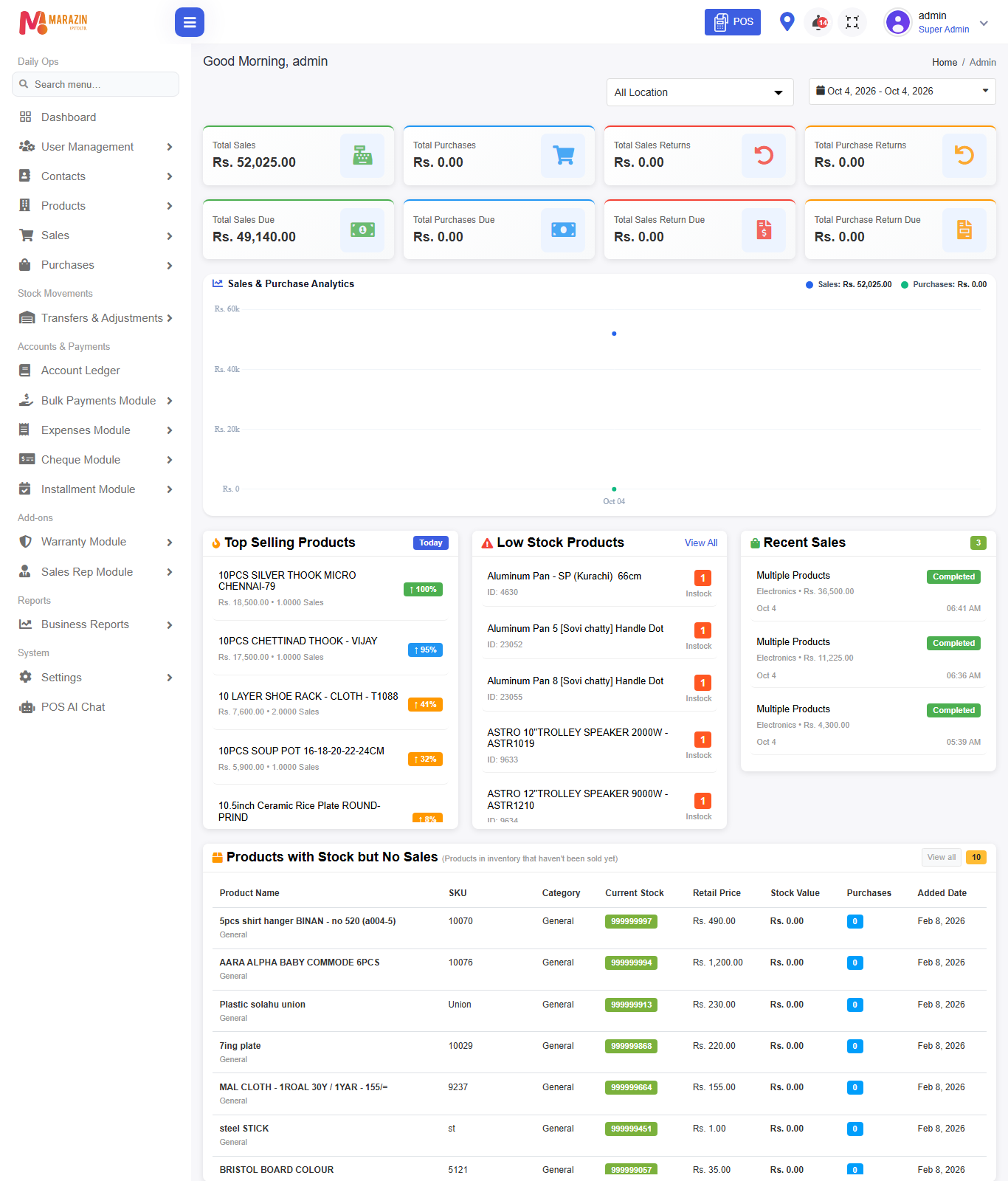
Daily Ops items in this guide
| Menu | Opens |
|---|---|
| Dashboard | Dashboard |
| User Management | Users, Roles, Permissions |
| Settings | Locations, General Settings, and other setup pages |
Other menus are covered in later guides.
Steps
- Click a group name to open or close it.
- Click a menu name to open that page.
- Type in Search menu… to filter the list.
- Click Clear to show every menu again.
What you will see
The current page stays highlighted. No matching menu appears when the search has no hit.
Tips
- Start in Daily Ops for day to day work.
- Use System and Settings for shop setup.
Common problems
| Problem | Solution |
|---|---|
| A menu is missing | Your role does not include it, or the module is off. |
| The menu is too narrow | Click the bars icon in the top bar. |