Dashboard
Who can use this: Every signed-in user. The cards change with your role. Where to find it: Dashboard
What is this?
This is your home screen after Sign In. It shows today totals, or shortcuts, based on your role.
Before you start
Sign in first. Your role decides which home you see.
Which home you see
- Admin home if you are Super Admin, or you have view all sales.
- My work home if you have view own sales, and not the admin home.
- Shortcut home for everyone else.
Open Admin dashboard or My work and shortcuts.
Top bar
- Click the shop logo to return to Dashboard.
- Click the bars icon to show or hide the left menu.
- Click POS to open the billing screen. You see it only with access pos.
- Hover the map pin to see your location names.

- Click the bell to open Notifications.
- Click Clear All to clear the list on screen.
- Click View all Notifications to open low stock. You need view stock-report.
- Click the expand icon to use the full screen. CHECK: this icon has no text name.
- Click your name. The menu shows your role and Logout.
- Click Logout to sign out.
CHECK: My Profile is not in this menu.
Left menu
The first heading is Daily Ops. Use Search menu… to find a menu name. Click Clear to empty the search. If nothing matches, you see No matching menu. Menus you cannot use stay hidden. The full list is on Left menu.
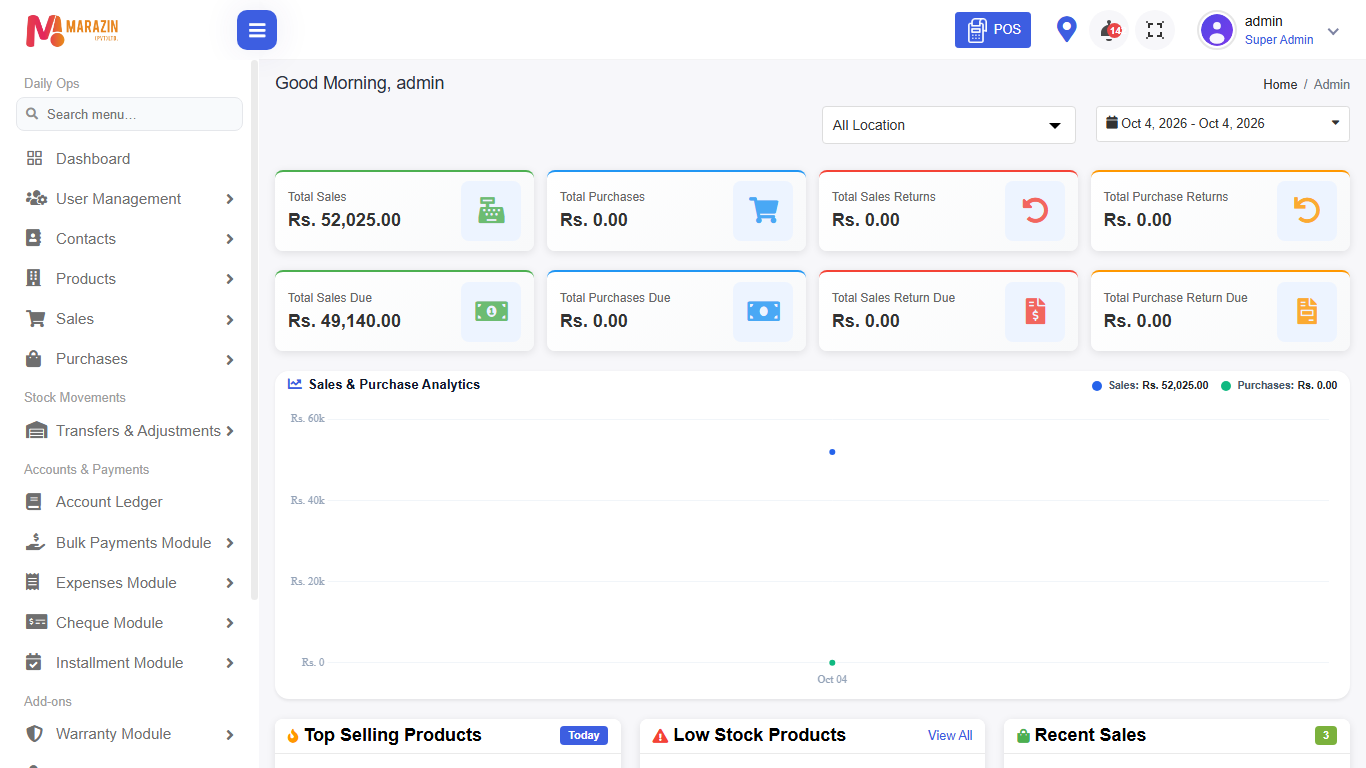
What you will see
A greeting uses your user name. It says Good Morning, Good Afternoon, or Good Evening. The breadcrumb says Home, then Admin or Home.
Tips
- Start each day on Dashboard.
- Logout from a shared counter computer when you finish.
Common problems
| Problem | Solution |
|---|---|
| Cards look different from a coworker | Your role is different. Ask a manager. |
| POS is missing | You need the access pos permission. |
| Search finds nothing | Check the spelling. Clear the search and look again. |