Business settings
Who can use this: Anyone with view settings. Saving the name and logo needs edit business-settings. Where to find it: Settings > General Settings
What is this?
This page sets the shop name, logo, and which features are on. The page title is Business Settings.
Before you start
Sign in as a manager. Have a logo file ready if you want one on screen.
Sections
| Section | What it is for |
|---|---|
| General | Shop name, logo, and favicon. |
| Features | Switches for the register and extra modules. |
| Purchase | Extra columns on the purchase product table. |
| Integrations | Mail, messages, and linked tools. You see it only with that access. |
| Backup | A copy of shop data. You need backup database. |

Set the shop name and logo
-
Open Settings > General Settings.
-
Stay on General.
-
Type the shop name in App Name.
-
Click Select Logo and choose an image.
-
Click Remove if you want to clear the chosen logo.
-
Click Select Favicon for the small browser icon.
-
Click Update Settings.
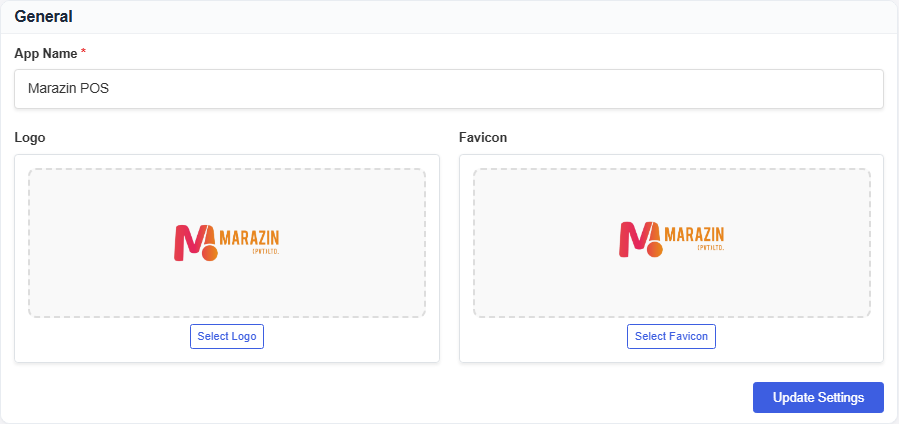
Field guide
| Field | Required? | What to enter |
|---|---|---|
| App Name | Yes | The name staff see when they sign in. |
| Logo | No | A PNG, JPG, JPEG, or ICO image. |
| Favicon | No | A small PNG, JPG, JPEG, or ICO image. |
Features you should know
Open Features. Each switch saves by itself. Use Search features to enable or disable… to find a switch. Expand all and Collapse all open or close the groups. If nothing matches, you see No features match your search.
| Group | What it covers |
|---|---|
| Register & pricing | Price checks, stock quantity, keyboard, free quantity, and racks. |
| Customer programs | Loyalty points and referrals. |
| Modules & channels | Extra modules such as shop, restaurant, warranty, and vouchers. |
| Credit & billing | Overdue credit block and backdated sales. |
| Returns & stock | Purchase returns, expiry alert, and damage stock location. |
Price & discount validation starts on for a new shop. On means only allowed users can change price or discount in POS. Off means everyone can change them. Turn other modules on only when you will use them. Later guides cover each module.
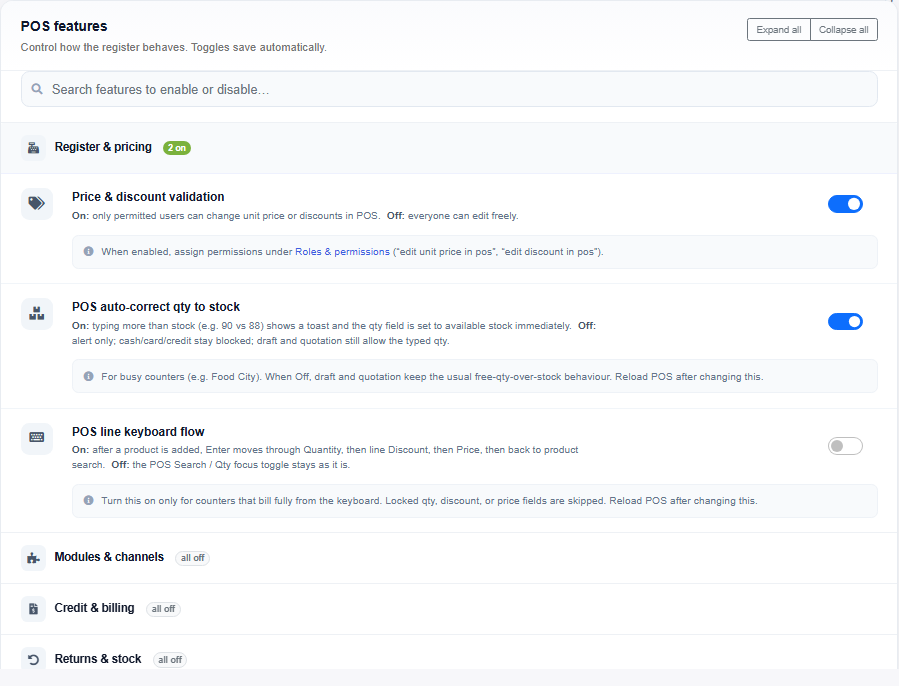
Purchase columns
Open Purchase. Always visible columns stay on the purchase table. Use the switches under Optional columns. Click Show all optional, Hide all optional, or Recommended (minimal). Click Save column settings. CHECK: the optional column names change with other shop options.
What you will see
General shows No logo uploaded or No favicon uploaded until you add a file. The sign-in page uses App Name and the logo after you save.
Tips
- Set App Name and the logo before you add users.
- Leave extra module switches off until you need them.
Common problems
| Problem | Solution |
|---|---|
| Update Settings does nothing useful | You need edit business-settings. |
| Save column settings is missing | The page says you need edit business-settings. |
| Backup is missing | You need backup database. |
| A module menu is still hidden | Turn the matching switch on under Features. Then refresh. |