Import customers
Who can use this: import customer Where to find it: Contacts > Import Customers
What is this?
Upload many customers from a file instead of typing one by one. The page title is Import Customers.
Before you start
Download the sample file from the page first. Fill name and phone in the same columns.
Steps
-
Open Contacts > Import Customers.
-
Download the sample file if you do not have one.
-
Fill customer name, phone, and other columns the sample shows.
-
Save the file.
-
Choose the file on the page and start the import.
-
Read the success or error message before you leave.
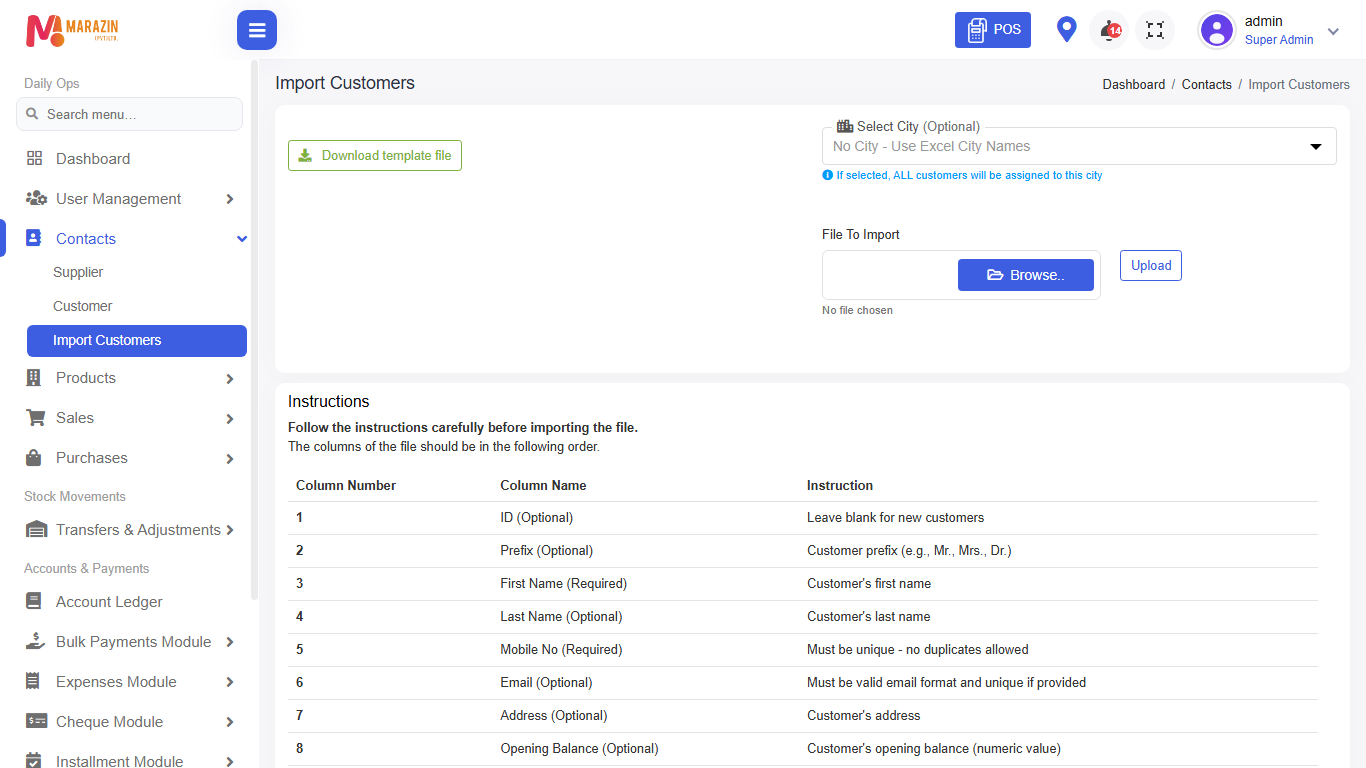
Field guide
| Field | Required? | What to enter |
|---|---|---|
| File | Yes | Same columns as the sample. |
| Customer name | Yes | Full name as you use on bills. |
| Phone | Recommended | Helps find the customer later. |
What you will see
New rows appear under Contacts > Customer after a good import.
Tips
- Fix one error row at a time, then import again.
- Do not change column headers in the sample.
Common problems
| Problem | Solution |
|---|---|
| Import fails | Open the error list and fix the row values. |
| Menu is missing | Role needs import customer. |