Customers
Who can use this: view customer. Creating one needs create customer. Where to find it: Contacts > Customer
What is this?
A customer is a person or shop you sell to. The page title is Customer.
Before you start
Know the name and mobile number. Add a location if the form asks for one.
Steps
-
Open Contacts > Customer.
-
Click New.
-
Type First Name.
-
Type Mobile No.
-
Pick Customer Type.
-
Click Save.
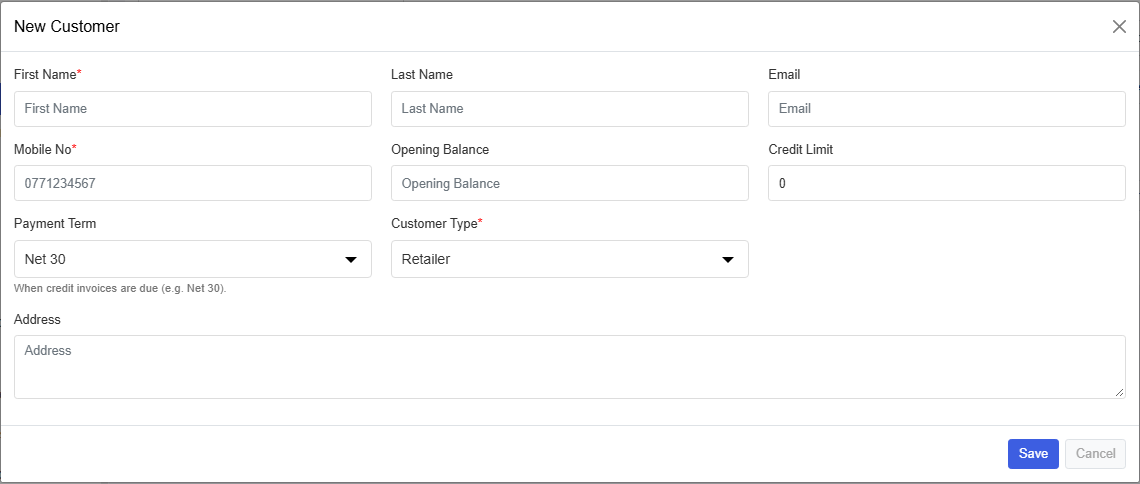
Field guide
| Field | Required? | What to enter |
|---|---|---|
| First Name | Yes | The customer name. |
| Last Name | No | The rest of the name. |
| Mobile No | Yes | A phone number you can call. |
| No | Used if you send mail. | |
| Opening Balance | No | Money already owed on day one. |
| Credit Limit | No | The most you will sell on credit. |
| Payment Term | No | How many days they have to pay. |
| Customer Type | Yes | The type shown in the list. |
| Address | Sometimes | Required only when full details are turned on. |
What you will see
The customer can be picked on the POS screen. Their due can show on Due Report.
Tips
- Use the real mobile number. It avoids duplicate customers.
- Set Credit Limit before you sell on Pay later.
Common problems
| Problem | Solution |
|---|---|
| New is missing | Ask for create customer. |
| Save asks for NIC photos | Full customer details are turned on in Features. |