Quotation → Invoice flow
Who can use this: Staff who can save quotation / confirm qty, and allocate delivery when using CREDIT. Where to find it: POS (main work) · Sales > Wholesale history (follow-up)
What is this?
The correct B2B wholesale chain on POS. Do not skip steps.
1 Quotation
2 Confirm qty
3 CREDIT  →  Give stock now  (type qty in Now column)
4 Next: payment terms
5 Bill created
6 Print documents  →  Dispatch + Delivery + Invoice
Before you start
- Settings > General Settings > Features > Wholesale order chain = On
- Select a real dealer / shop customer — not Walk-In
- Add products to the cart
- Open register if POS asks
Full flow
1) Start the bill
- Open POS.
- Select the B2B customer (not Walk-In).
- Add products and quantities.
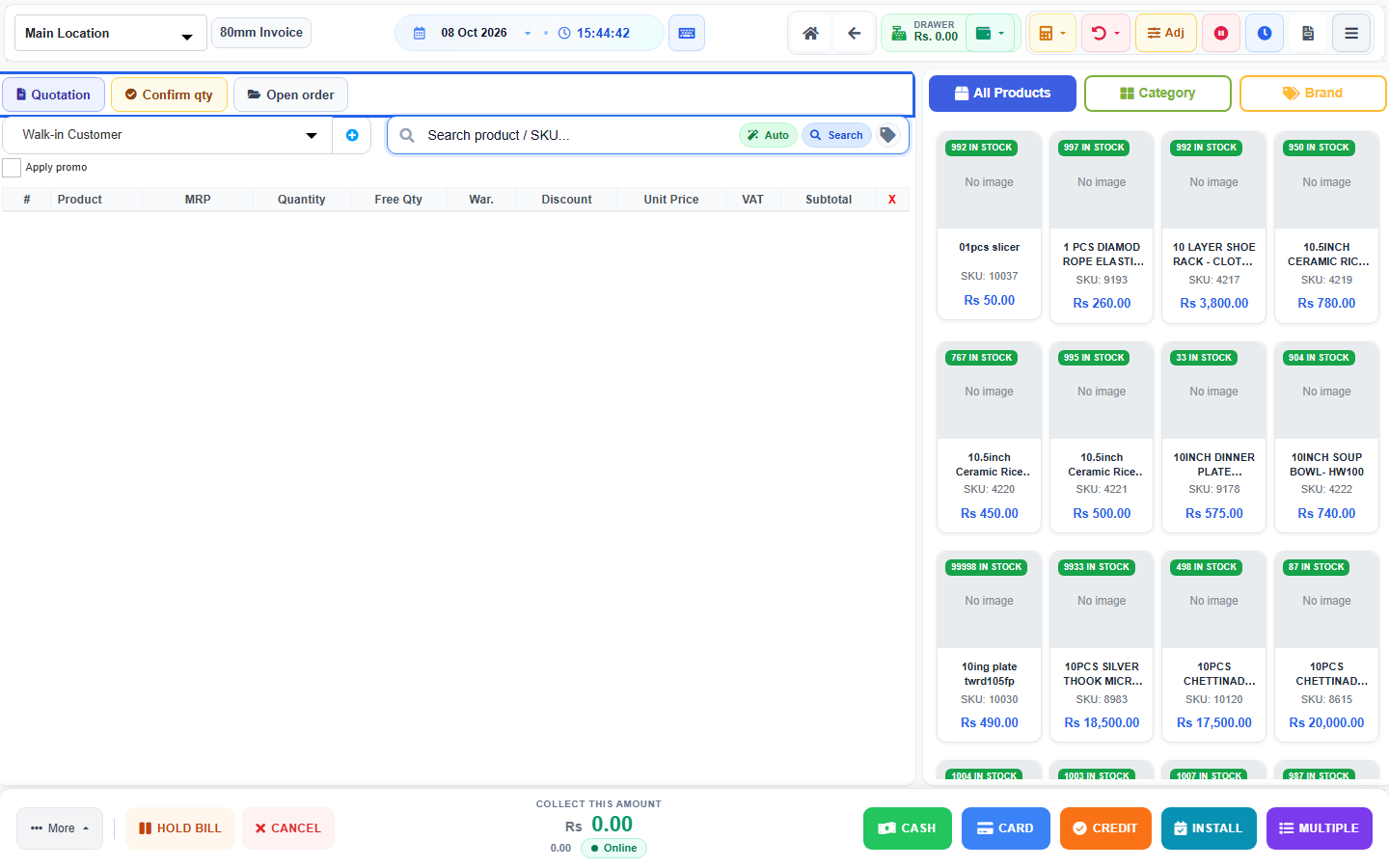
2) Quotation (prices only — no stock out)
- On the blue wholesale bar, press Quotation.
- Print if the customer wants a paper estimate (Print quotation when shown).
- Stock is not reduced.
3) Confirm qty (still no stock out)
- When the customer agrees the quantities, press Confirm qty.
- Order leaves Quotation status (ready to allocate later).
- Stock is still not reduced.
- If you change cart lines after this, press Confirm qty again before CREDIT.
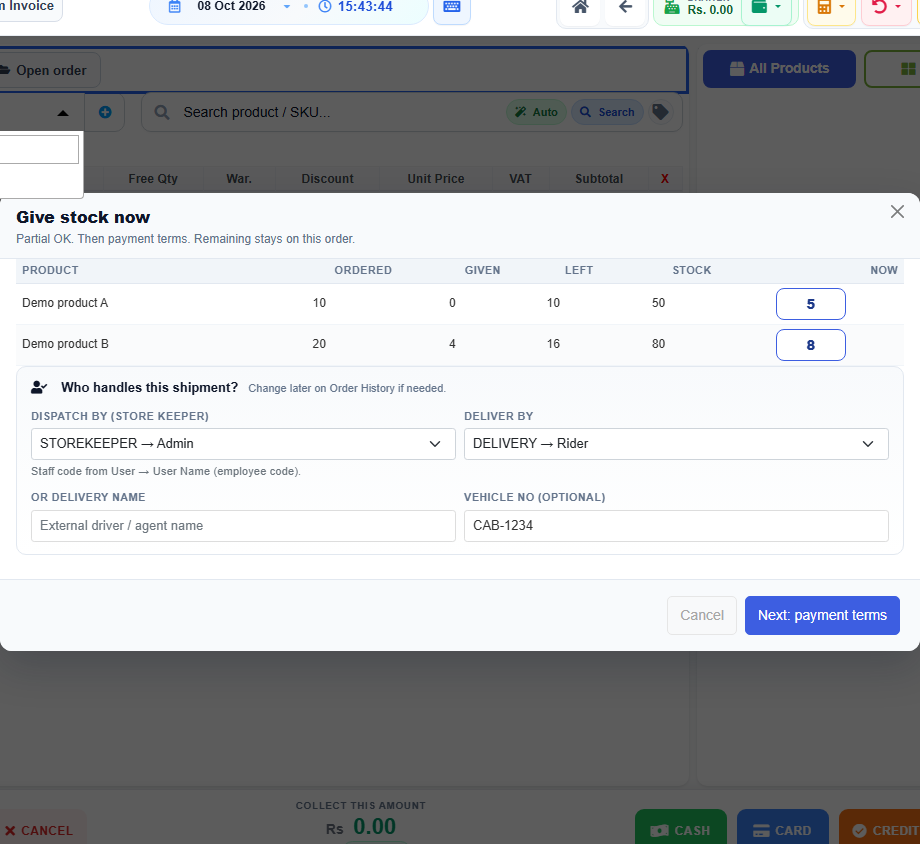
4) CREDIT → Give stock now (allocate qty)
- Press CREDIT (do not use Cash / Card for this chain).
- Window title: Give stock now.
- Subtitle: Partial OK. Then payment terms. Remaining stays on this order.
- Table columns:
| Column | Meaning |
|---|---|
| Product | Line item |
| Ordered | Confirmed order qty |
| Given | Already delivered before |
| Left | Still to give |
| Stock | Available at this location |
| Now | Qty to give this trip (type here) |
- Under Who handles this shipment? fill:
- Dispatch by (store keeper) — required
- Deliver by — staff, or
- Or delivery name — external driver name
- Vehicle no (optional)
- Press Next: payment terms.
5) Payment terms → bill created
- Choose the credit payment term (and bill reference if your shop uses it).
- Confirm.
- System creates the credit invoice and takes the Now qty from stock.
6) Print documents
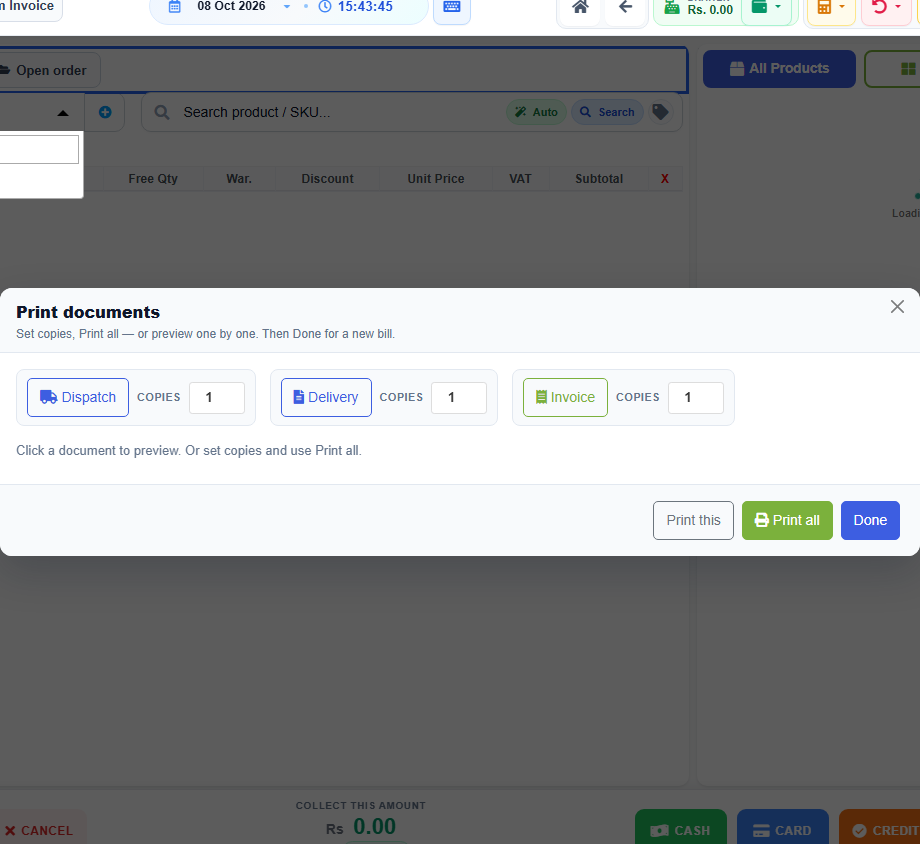
Print documents opens automatically:
| Button | Document |
|---|---|
| Dispatch | Dispatch note |
| Delivery | Delivery note |
| Invoice | Credit invoice |
- Set Copies if needed.
- Print all, or open one → Print this.
- Press Done for the next bill.
- Remaining Left qty stays on the same order — reopen with Open order or Sales > Wholesale history.
Tips
- Stock goes out only after payment terms confirm — not at Quotation or Confirm qty.
- Partial delivery: put less in Now than Left; finish later with another CREDIT.
- Open order = reopen a saved quotation / confirmed order into POS.
- Wholesale history is not the same as All Sales.
Common problems
| Problem | Solution |
|---|---|
| CREDIT says confirm first | Press Confirm qty, then CREDIT. |
| Cart changed | Press Confirm qty again, then CREDIT. |
| Walk-In blocked | Select a registered B2B customer. |
| Cannot type more than Left | Lower Now qty. |
| No permission | Role needs allocate delivery permission. |
| Payment terms cancelled | Give stock now reopens — fix Now / staff, then continue. |