Sales payments (select bill)
Who can use this: Role with bulk sale payment
Where to find it: Bulk Payments Module → Sales Payments
Breadcrumb: Bulk payments → Add Sale Payments
What is this?
Office screen to collect money from a registered customer and choose which invoices (and / or opening balance) the money clears.
This page is manual / select-bill.
For counter FIFO (oldest bills first), use Pay customer due on POS instead.
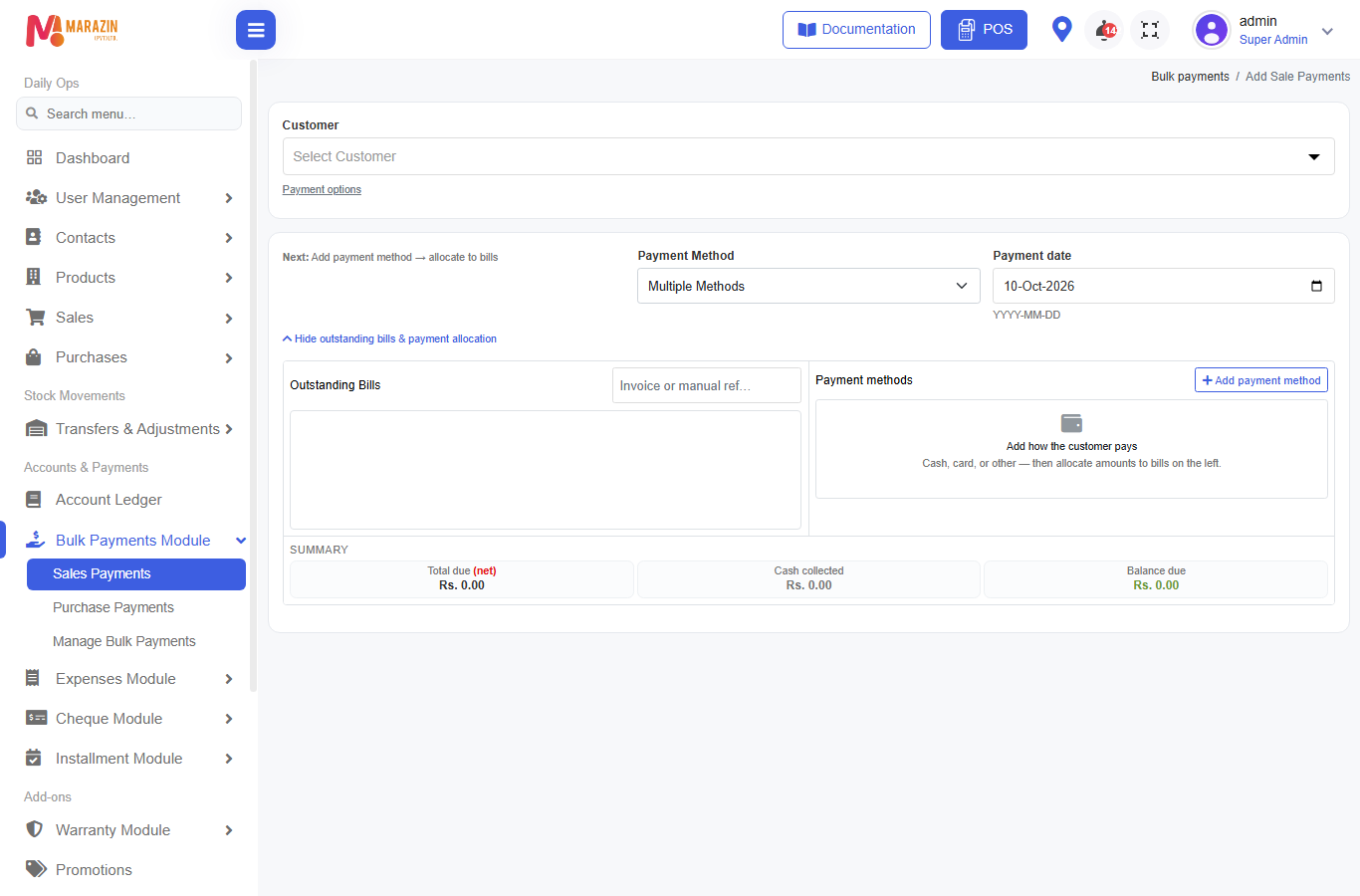
Before you start
- Bulk Payments module = On
- Customer has unpaid sales and / or opening balance (or return / advance credit to apply)
- Walk-In customers are not used here
Workflow (4 steps)
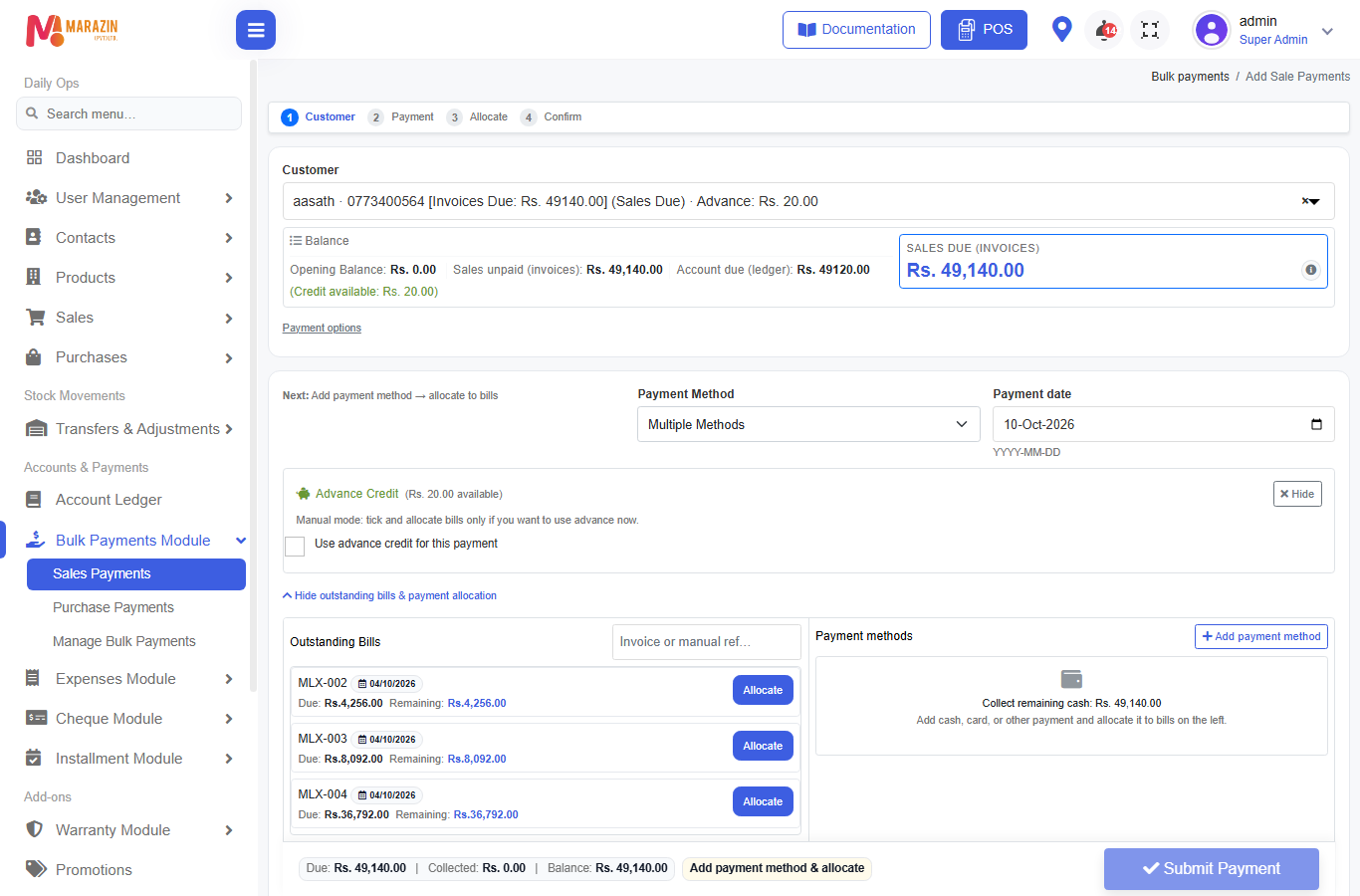
After you pick a customer, the bar shows:
1 Customer → 2 Payment → 3 Allocate → 4 Confirm
1) Select customer
- Open Sales Payments.
- Choose Customer.
- Read the summary:
| Label | Meaning |
|---|---|
| Opening Balance | Old opening still unpaid |
| Sales unpaid (invoices) | Open invoice dues |
| Account due (ledger) | Ledger view of what they owe |
| Sales due (invoices) | Highlighted amount you usually collect against bills |
| Returns / Credit available | Pending return credit or advance on account |
2) Payment options — bills, opening, or both
- Click Payment options.
- Choose one:
| Option | Use when |
|---|---|
| Sale Bills | Pay invoices only (default) |
| Opening Balance | Clear opening balance only |
| Both | Pay opening first, then invoices in the same batch |
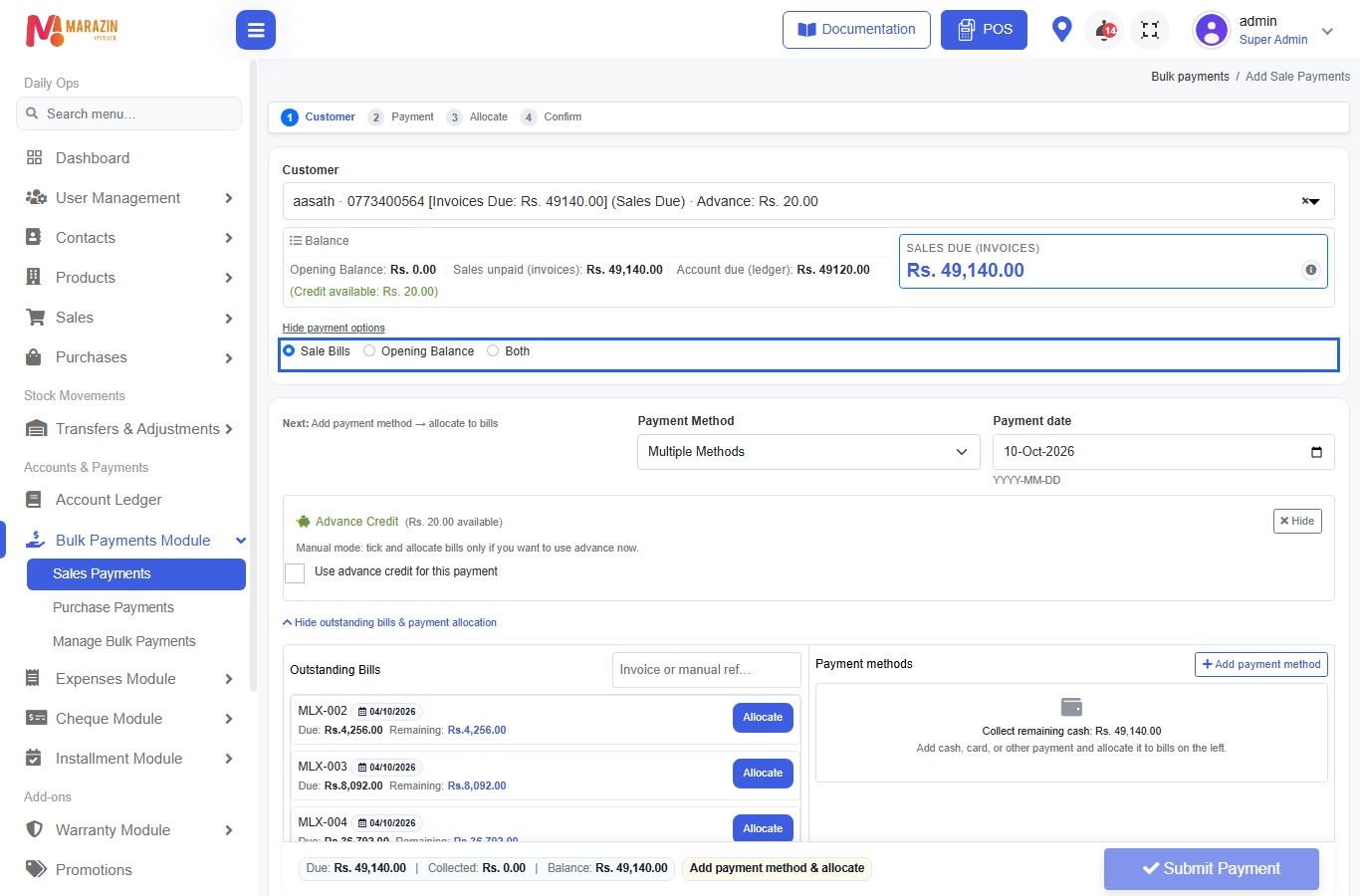
Both uses smart allocation: opening balance is covered before bill amounts from the same money.
3) Amount, method, date
| Field | Notes |
|---|---|
| Amount Received | Cash / card / cheque / bank total you are taking now |
| Payment Method | Cash, Credit Card, Cheque, Bank Transfer, or Multiple Methods |
| Payment date | Shop business date (YYYY-MM-DD) |
Cheque and bank / card may ask for extra fields — fill them before submit.
4) Optional — return credit
If the customer has pending returns:
- Open Returns (▼ show).
- Tick the return(s).
- Under Use credit, choose:
- Apply to invoice — reduce invoice dues with return credit
- Cash refund — give cash back instead
- Press Change Allocation to pick which invoices get the credit.
Return credit applied this way is not a second cash receipt — it uses the return credit already on the account.
5) Optional — advance credit
If Advance Credit shows available:
- Tick Use advance credit for this payment.
- Press Select Bills and allocate how much advance goes to each invoice.
- Use Hide if you decide not to use advance now.
You must allocate advance bill by bill on this screen (manual).
6) Allocate cash to bills
- Open Show outstanding bills & payment allocation.
- Add methods with Add payment method if you chose multiple.
- For each method, enter how much goes to:
- Opening balance (when Opening Balance / Both is on)
- Each selected invoice
- Leftover → advance (customer credit)
- Watch the sticky bar: Due / Collected / Balance. Use Allocate to match due when offered.
- Press Submit Payment.
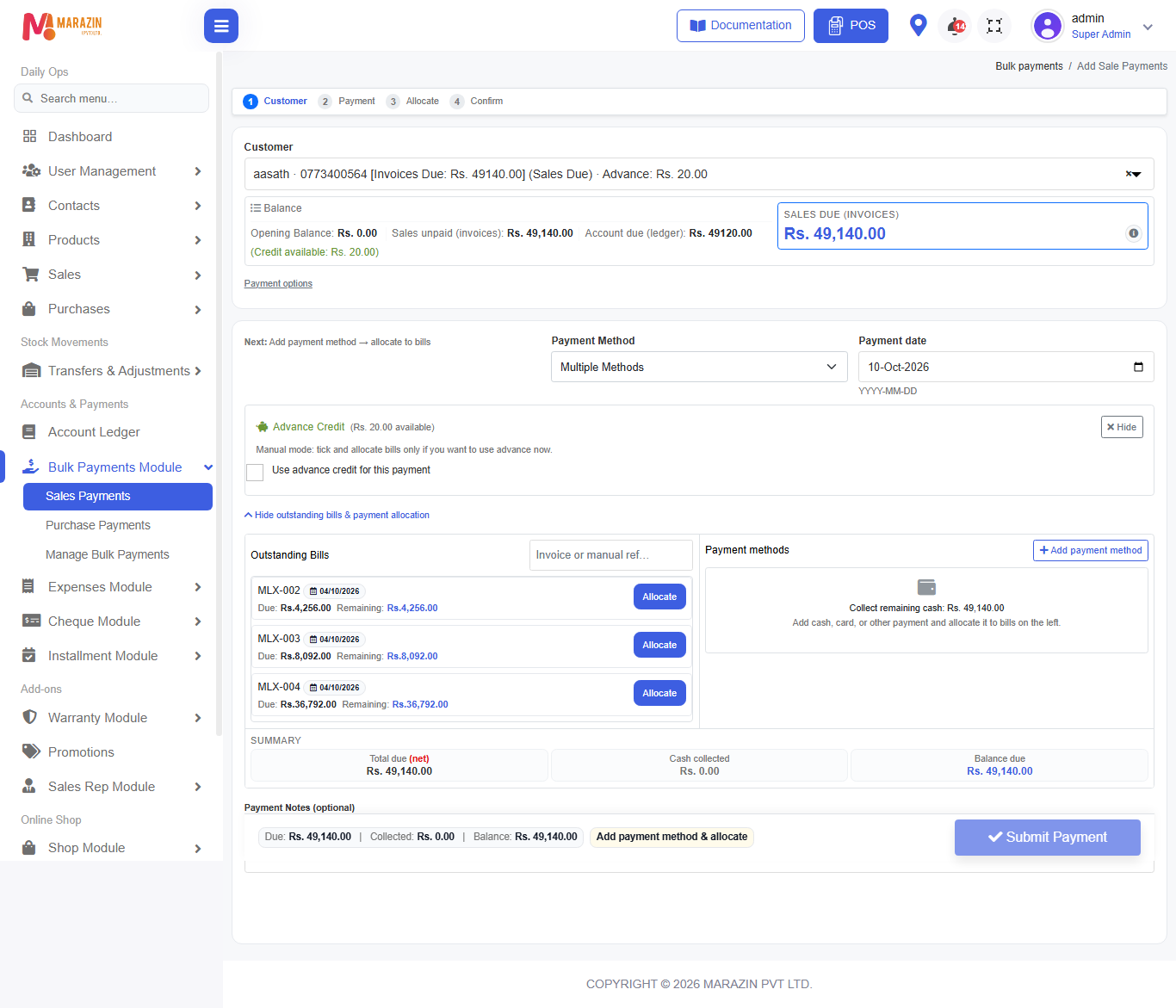
Multi payment methods (one batch)
Example: customer pays Rs. 10,000 cash + Rs. 5,000 cheque against several invoices.
- Set Payment Method to Multiple Methods (or add rows).
- Add payment method for each slice.
- Allocate each method’s total across the bills you choose.
- One Submit Payment → one bulk reference for the whole batch.
What happens after submit
- Selected invoices move to Paid or Partial
- Opening balance reduces when included
- Unused cash can become advance
- Return / advance usages post as credit usage (not a new cash in)
- Batch appears under Manage Bulk Payments with a shared reference
- Account ledger updates for the customer
Field guide
| Field | Required? | What to enter |
|---|---|---|
| Customer | Yes | Registered customer with dues / credit |
| Payment options | When needed | Sale Bills / Opening Balance / Both |
| Amount Received | Usually yes* | Money received now |
| Payment Method | Yes | Cash / card / cheque / bank / multiple |
| Payment date | Yes | Payment date |
| Bill allocation | Yes (manual) | Which invoices get how much |
| Return / advance | No | Only if you want to use those credits |
*Return-only or advance-only settlements can submit without new cash methods.
Tips
- Prefer this screen when the customer says “clear these invoices”.
- Prefer POS Pay customer due when they say “take this money against old bills”.
- If ledger due and sales due differ, open the ? / why-amount hint and check Account ledger.
Common problems
| Problem | Solution |
|---|---|
| Menu missing | Turn Bulk Payments module on; refresh |
| Cannot open page | Role needs bulk sale payment |
| No bills listed | Customer has no open sales for the filter / location |
| Cannot allocate more than due | Lower the amount — cash + advance + return cannot exceed bill due |
| Cheque fields error | Fill cheque number / date / bank as required |
| Walk-In | Use a registered customer |