Purchase payments
Who can use this: Role with bulk purchase payment
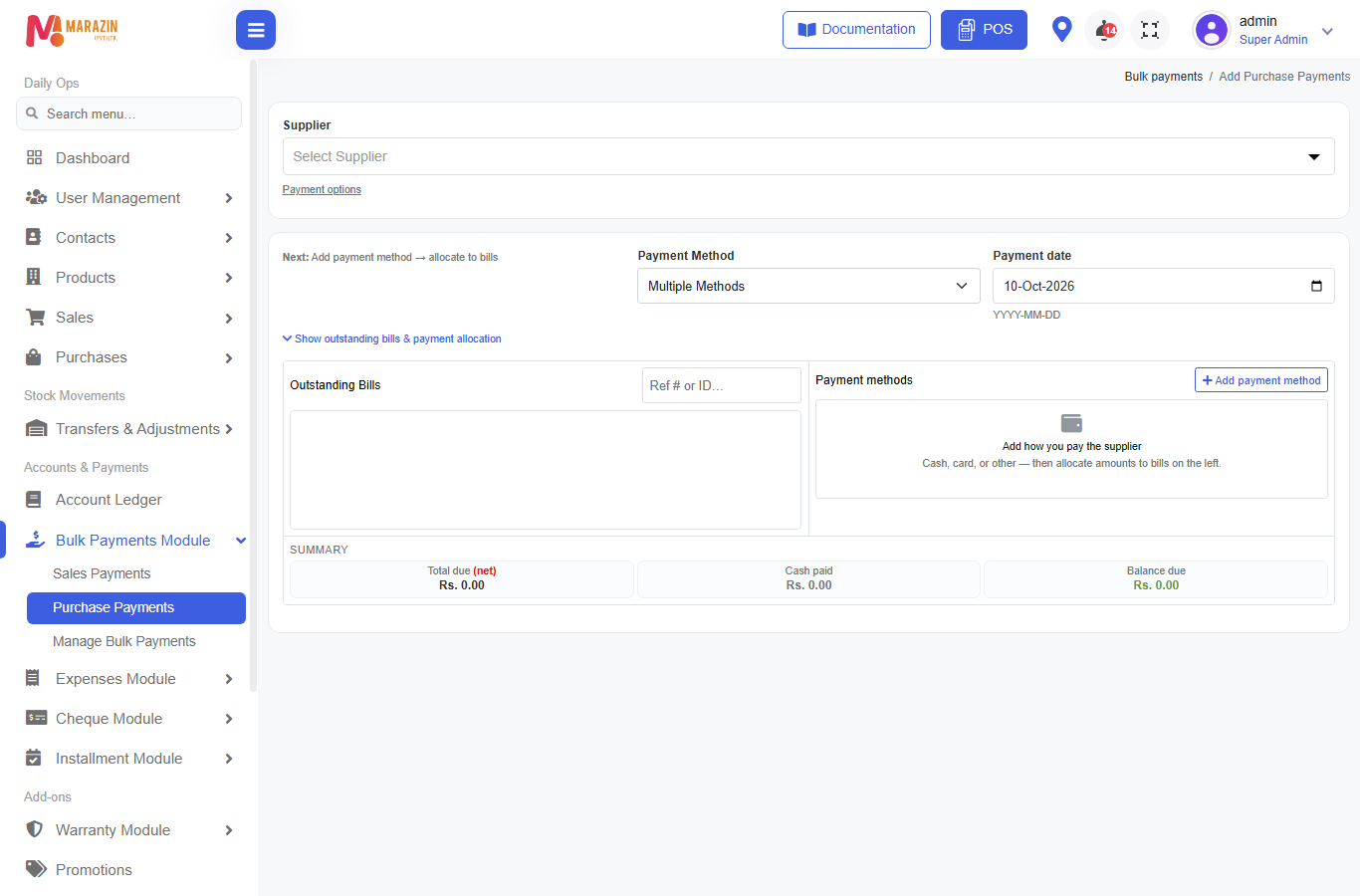
Where to find it: Bulk Payments Module → Purchase Payments
Breadcrumb: Bulk payments → Add Purchase Payments
What is this?
Pay a supplier against unpaid purchase bills and / or opening balance in one batch.
Allocation is manual / select-bill (you choose which purchases). Return credits can use Auto FIFO in the UI to fill oldest purchases first.
Before you start
- Bulk Payments module = On
- Role has bulk purchase payment
- Supplier has unpaid purchases and / or opening balance (or return / advance credit)
Workflow (4 steps)
1 Supplier → 2 Payment → 3 Allocate → 4 Confirm
1) Select supplier
- Open Purchase Payments.
- Choose Supplier.
- Check:
| Label | Meaning |
|---|---|
| Opening Balance | Supplier opening still unpaid |
| Purchase unpaid (bills) | Open purchase dues |
| Account due (ledger) | Ledger owed amount |
| Purchase due (bills) | Highlighted bill total to settle |
2) Payment options
Click Payment options:
| Option | Settles |
|---|---|
| Purchase Bills | Purchase invoices only (default) |
| Opening Balance | Opening only |
| Both | Opening first, then purchase bills |
3) Amount paid & method
| Field | Notes |
|---|---|
| Amount Paid | What you are paying the supplier now |
| Payment Method | Cash, Credit Card, Cheque, Bank Transfer, Multiple Methods |
| Payment date | Shop date |
4) Return credit (optional)
- Open Returns.
- Select return(s).
- Use credit → Apply to purchase / Apply to Purchases.
- Change Allocation to pick purchases — or use UI Auto FIFO (oldest purchase first) for the credit.
5) Advance credit (optional)
- If Advance Credit is available, tick use-for-this-payment.
- Select Bills and allocate manually (same idea as sales).
6) Allocate & submit
- Open outstanding bills allocation.
- Add payment method as needed.
- Split amounts across opening / purchases / leftover advance.
- Sticky bar uses Paid: (not “Collected”).
- Press Submit Payment.
Multi methods
Same pattern as sales: one batch can mix cash + cheque + bank.
Shared purchase reference shape: BLK-P#### (opening-focused batches may use BLK-POB####).
What you will see
- Purchase payment status → Paid / Partial
- Opening balance reduced when included
- Excess paid can sit as supplier advance
- Batch listed in Manage Bulk Payments
- Account ledger for the supplier updates
Field guide
| Field | Required? | What to enter |
|---|---|---|
| Supplier | Yes | Who you are paying |
| Payment options | When needed | Bills / Opening / Both |
| Amount Paid | Usually yes | Money going out |
| Payment Method | Yes | Cash / card / cheque / bank / multiple |
| Bill allocation | Yes | Which purchases get how much |
Tips
- Use Both when the supplier’s statement includes opening + new bills.
- Return credit Auto FIFO speeds allocation; override with Change Allocation when the supplier names a bill.
- Match the supplier statement to Account ledger after posting.
Common problems
| Problem | Solution |
|---|---|
| Menu missing | Enable Bulk Payments module |
| Cannot open | Need bulk purchase payment permission |
| Amount too high | Cannot allocate more than remaining bill due |
| Cheque validation | Complete cheque fields |