Manage bulk payments
Who can use this: Staff with bulk payment permissions (void needs void past bulk payment)
Where to find it: Bulk Payments Module → Manage Bulk Payments
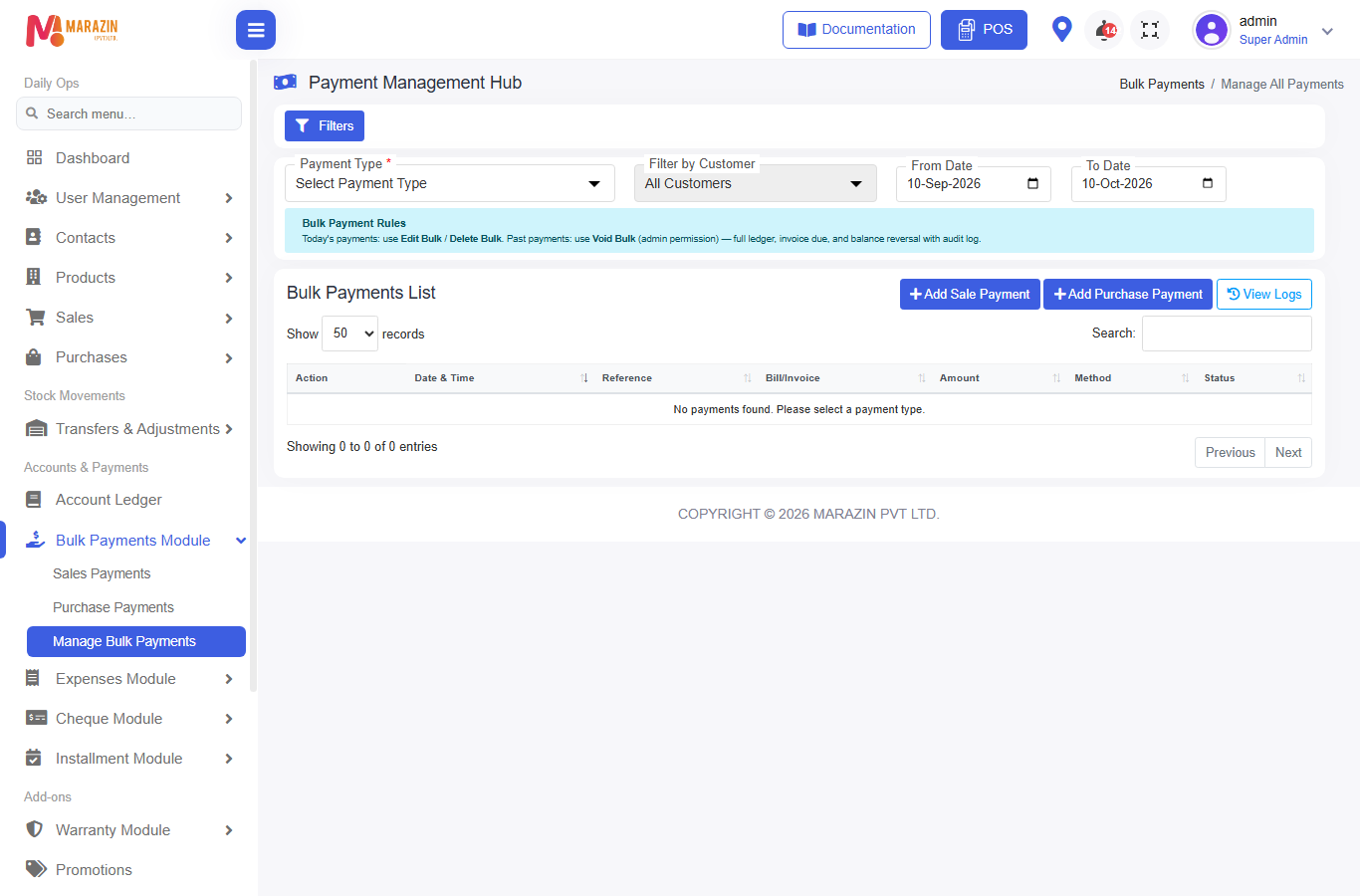
Page: Payment Management Hub / Bulk Payments List
What is this?
List of bulk payment batches (grouped by reference). From here you add new payments, filter history, edit or delete today’s batch, or void a past batch.
Before you start
- Bulk Payments module = On
- Know whether the batch is from today or an earlier day (rules differ)
Steps
- Open Manage Bulk Payments.
- Use top buttons as needed:
- Add Sale Payment
- Add Purchase Payment
- View Logs
- Filters
- Filter by type when needed:
| Filter | Meaning |
|---|---|
| Sale Payments | Customer payments for invoices |
| Purchase Payments | Payments to suppliers |
| Opening Balance Payments | Opening-focused batches |
| Return Payments | Refunds & returns linked in bulk |
- Open a batch row to see allocated bills / methods.
Edit, delete, void (day rules)
| When | Allowed actions |
|---|---|
| Today | Edit Bulk · Delete Bulk |
| Past day | Void Bulk (needs void past bulk payment) |
Rules shown on the page:
- Edit Bulk / Delete Bulk — today only
- Void Bulk — past batches (full reversal)
Void reverses dues, ledger effects, and related postings for that reference, and writes a log.
If the system says the batch is still “today”, use Delete Bulk, not void.
Logs
View Logs / Bulk Payment Logs shows who edited, deleted, or voided a batch — useful for audit after a correction.
Tips
- Prefer void only when the payment day is closed and you must reverse cleanly.
- After edit / delete / void, re-check the contact on Account ledger.
- Reprint receipts from the payment flow / recent list when available (POS due modal has Reprint last).
Common problems
| Problem | Solution |
|---|---|
| Cannot void | Need void past bulk payment; batch must not be “today” |
| Cannot edit yesterday | Use Void Bulk, then create a correct new payment |
| Batch missing | Widen Filters / date range |