Bulk payments
Who can use this: bulk sale payment and / or bulk purchase payment Where to find it: Bulk Payments Module
What is this?
Pay many sale or purchase dues in one screen. Installment Collect EMI Payment also uses sales bulk payments when both modules are on.
Before you start
Turn Bulk Payments module on in Settings > Features.
Steps
-
Open Settings > General Settings > Features.
-
Turn on Bulk Payments module, then refresh.
-
Open Bulk Payments Module > Sales Payments to collect customer dues.
-
Or open Purchase Payments to pay suppliers.
-
Pick the customer or supplier, tick invoices, enter amounts, then save.
-
Use Manage Bulk Payments to review past bulk payments.
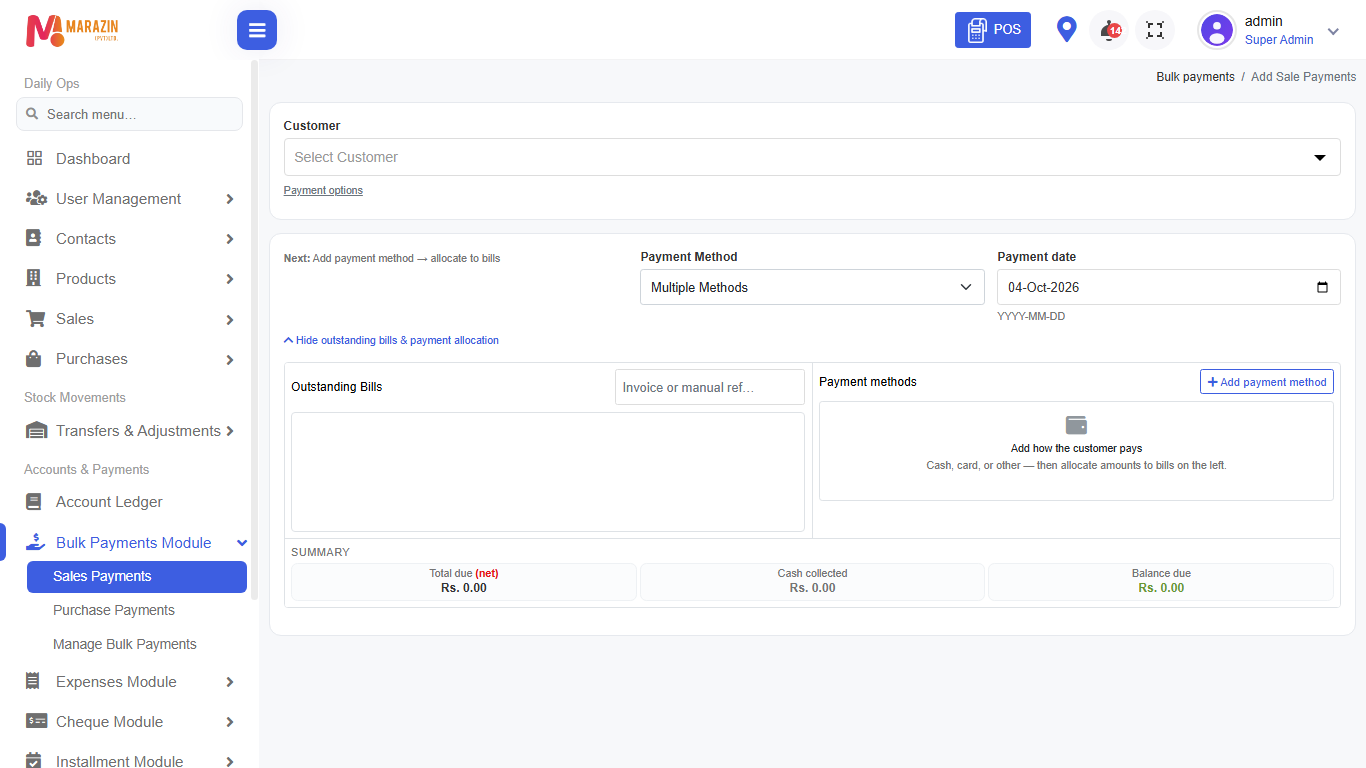
Field guide
| Field | Required? | What to enter |
|---|---|---|
| Customer / Supplier | Yes | Whose bills you are settling. |
| Amount per invoice | Yes | How much of each due you pay now. |
| Payment method | Yes | Cash, card, cheque, or mixed when offered. |
What you will see
Selected invoices update to paid or partial. Manage Bulk Payments lists the batch.
Tips
- Check the remaining due before you save.
- For EMI, open Installment Module > Collect EMI Payment (same sales payments screen).
Common problems
| Problem | Solution |
|---|---|
| Menu missing | Turn Bulk Payments module on and refresh. |
| Cannot open sales payments | Role needs bulk sale payment. |